Chapter 3
Record, Import and Comment on Audio in Zoundroom
Updated
On this page
- Record from the home screen (mobile)
- Record inside a project
- Record inside a note
- Web recorder
- Recording format and length
- Import audio
- Mini player
- Full player
- Queue, skipping and repeat
- Background playback and lock screen
- Timestamped comments
- Reply, edit and delete comments
- Download and share an audio
- What happens to an audio after you record it
- Edit the audio
This chapter covers every way to get audio into Zoundroom: recording from the home screen, inside a project, inside a note and with the web recorder, plus importing files. It also explains the players, timestamped comments and how to download an audio. Editing the audio itself has its own chapter: Audio editor.
Record from the home screen (mobile)
Capture an idea the moment you have it, without opening a project first. When you stop, you choose the name and the project it goes into.
Where it is: the home screen (Projects) → the floating «Record» button at the bottom, with the microphone icon. It only appears if the active space («My space» or «Band») has at least one project. When the mini player is showing, a round microphone button next to the player takes its place.
Step by step:
- Tap «Record». Recording starts and the button shows the time.
- Tap again to stop.
- The «Recording title» dialog opens. The name is filled in with «New recording» and a number.
- If you have band projects, the «Space» chips let you pick «My space» or «Band».
- Below, in «Select project» («In which project do you want to save this recording?»), the last project you opened in that space is already selected.
- Tap «Save». To throw it away, tap «Delete» and confirm («Are you sure you want to delete this recording?»).
Limits:
- With an empty title, «Save» stays disabled.
- Your plan’s limit is checked while you record. If you are already at the maximum, the recording stops, is discarded and the plans screen opens. In the Band space, if the plan has expired, you see a notice.
- If you close the dialog by tapping outside it, the file stays on your phone. After at least 5 minutes, the next time the home screen loads it is imported into your first project on its own («… audios have been migrated to the default project»).
- If you pick a shared project where you are a viewer, saving fails with «Error saving audio».
What it does not do:
- You cannot pause and resume.
- There is no level meter.
- You cannot cancel halfway: stop, then tap «Delete».
On mobile and on the web: on the web, «Record» on the projects screen opens the web recorder, where you choose the name and the project before recording.
Record inside a project
Record straight into the open project, without choosing where it goes.
Where it is: project → the «Add» button at the bottom → «Record». The same menu has «Note», «Import» and «File».
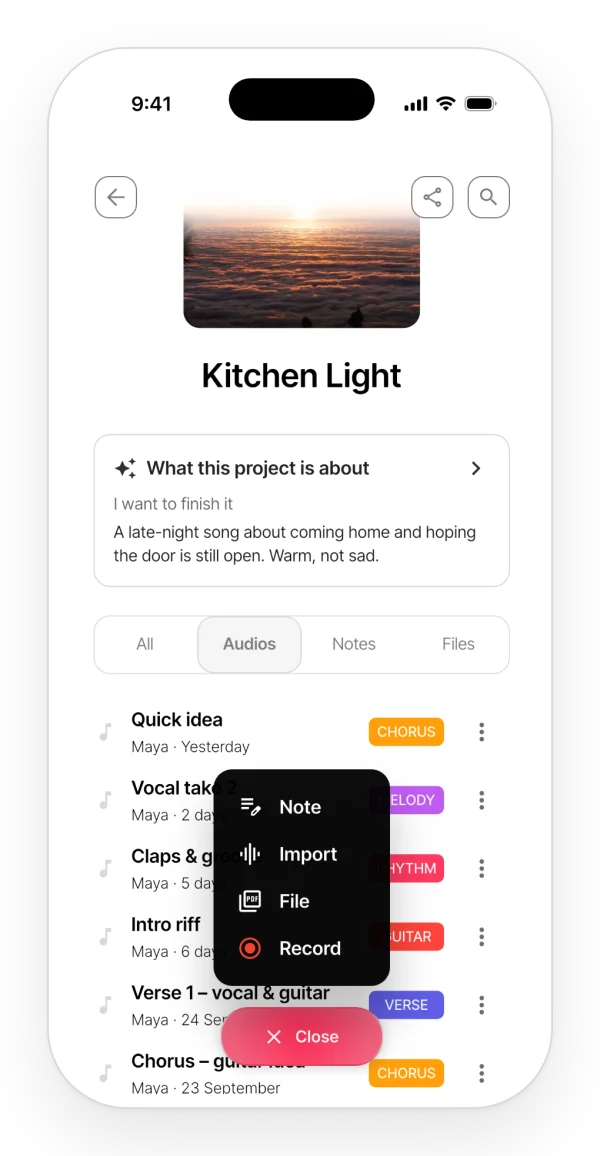
Step by step:
- Tap «Record». The button shows the time.
- Tap again to stop.
- The audio is saved in that project as «New recording» with a number. You can change the name later from ⋮ → «Rename».
Limits:
- Only the owner, editors and members of an active Band can record. Viewers do not see the button.
- Each recording counts toward your plan’s content limits (see the limits table). If you are at the limit, your phone cuts the recording off and discards it; the web warns you before you start («This project has reached your plan’s content limit.»).
What it does not do: it does not ask for a name and you cannot discard the take: what you record is always saved, and if you do not want it, you delete it afterwards. There is no pause.
On mobile and on the web:
- On the web, the «Add» menu has «Note», an option to import audio, an option for PDF files and «Record». While it records, a bubble shows the progress until «Recording saved and synced.».
- On the web, leaving the project while you record discards the recording. On your phone, recording carries on even if you switch screens.
Record inside a note
Record while you write a lyric, and the audio is inserted into the note where your cursor is.
Where it is:
- Mobile: inside a note → the round microphone button at the bottom right. It does not appear in read-only notes.
- Web: project → «Notes» tab with a note open. The floating button becomes «Record».
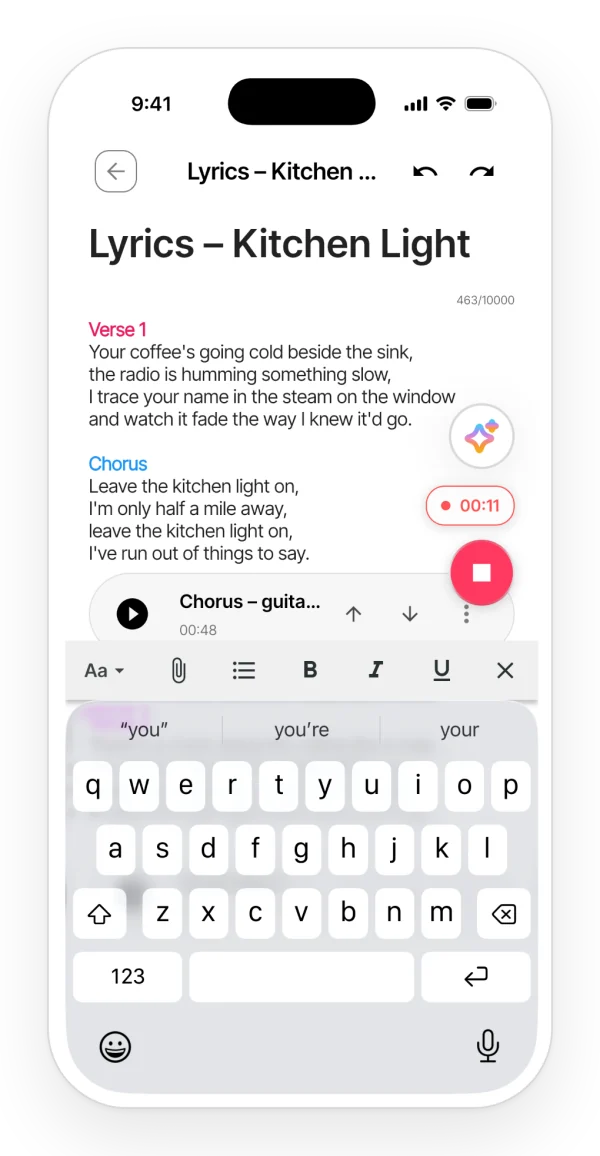
Step by step (mobile):
- Tap the microphone. A red pill shows the time.
- Tap stop.
- The audio goes into the note’s project («Project selected: …»). If the note has no project, you are asked to choose one.
- In «Recording title», type a name (up to 50 characters) and tap «Save». The audio is inserted into the note («Recording saved»).
Step by step (web): tap «Record» and then stop. The audio is saved as «New recording» with a number and inserted at the cursor.
Limits:
- Mobile: recordings of half a second or less are discarded («Recording too short»). Canceling the name dialog deletes the recording.
- Web: if you close the note before it finishes, the audio is removed («The note is no longer open.»).
What it does not do: on the web you cannot import a file into a note. While a note is open, the «Add» menu disappears: switch tabs to use it.
Web recorder
Record from your computer with a large timer and a level meter. The page is called «New recording».
Where it is: Projects → «Record». It only appears if the active space has projects.
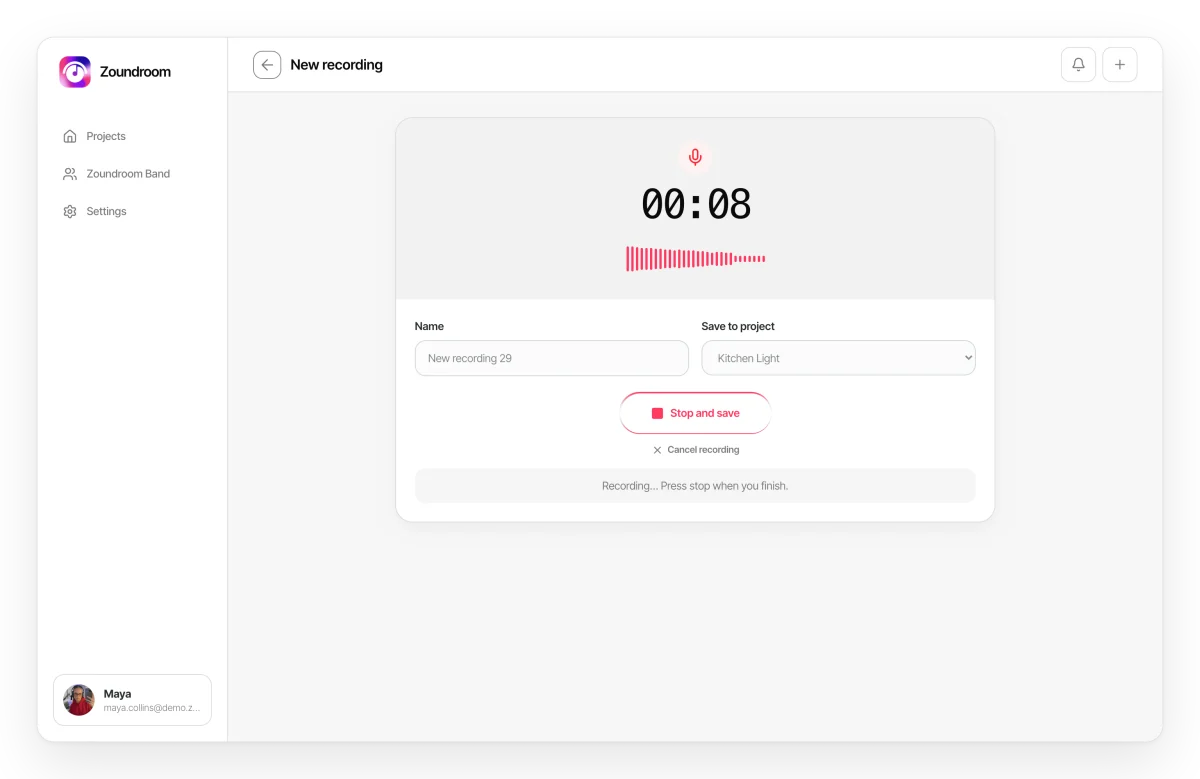
Step by step:
- Check the «Name»: it is filled in for you and can be up to 120 characters.
- Choose the project in «Save to project». The last one you opened is already selected.
- Click «Record». You will see the timer and the level bars moving.
- Click «Stop and save», or «Cancel recording» to throw it away.
- When it finishes, you get «Open project» and «Record another».
Limits:
- Before you record, the project, your permissions and your plan are checked. You may see «You do not have permission to add content to this project.», «The Band plan must be active to record in this project.» or a limit notice with the «View plans» button.
- If the browser cannot use the microphone, you will see «Allow microphone access to start recording.» or «No available microphone was found.».
- At 30 minutes, the recording stops and is saved on its own.
- Leaving the page while you record discards the recording.
What it does not do: there is no pause and no monitoring of what you record.
Recording format and length
Format:
- Mobile: AAC-LC at 256 kbps and 44.1 kHz, in an .m4a file. No noise suppression and no automatic gain control.
- Web: the browser records at 256 kbps and Zoundroom converts it to M4A AAC at 256 kbps before uploading it. Echo cancellation and noise suppression are off; automatic gain control is on.
Limits:
- Each recording lasts at most 30 minutes, on every platform.
- Each recording counts as one item in the project for your plan’s limits.
In the background:
- Mobile: recording carries on if you switch screens inside the app. On Android it may stop if you leave the app or lock the screen.
- Web: closing or leaving the page discards the recording.
Import audio
Upload to a project an audio you already have on your phone or computer.
Where it is:
- Mobile: project → «Add» → «Import».
- Web: project → «Add» → the import audio option.
Step by step:
- Choose a file (one at a time).
- Follow the progress: on your phone, in a dialog with several stages («Verifying file…», «Converting audio…», «Completed»); on the web, in a bar under the cover.
- The audio is saved with the file’s name, without the extension.
Limits:
- Mobile: mp3, wav, m4a, aac and ogg. Web: any audio your browser can read.
- Up to 250 MB and 30 minutes per file.
- Everything is saved as M4A AAC at 256 kbps: the original file (WAV, MP3…) is not kept.
- Each import counts as one item for your plan.
What it does not do: it does not import several files at once or accept audio shared from other apps. On your phone it needs a connection.
Mini player
Keep listening while you move around the app.
Where it is: it appears when you tap any audio in a project.
- Mobile: a dark pill with the cover, the name, the time, play/pause, next and an X. Tap it to open the full player; swipe it to the right to close it.
- Web: a bar at the bottom with previous and next, «Go back 10 seconds» and «Go forward 10 seconds», play/pause and the progress bar. It also has «Open full player» and «Close player».
If an audio does not load, you will see «This audio could not be played.» with «Retry». On the web, if the browser blocks sound, you will see «Press play to continue.».
Full player
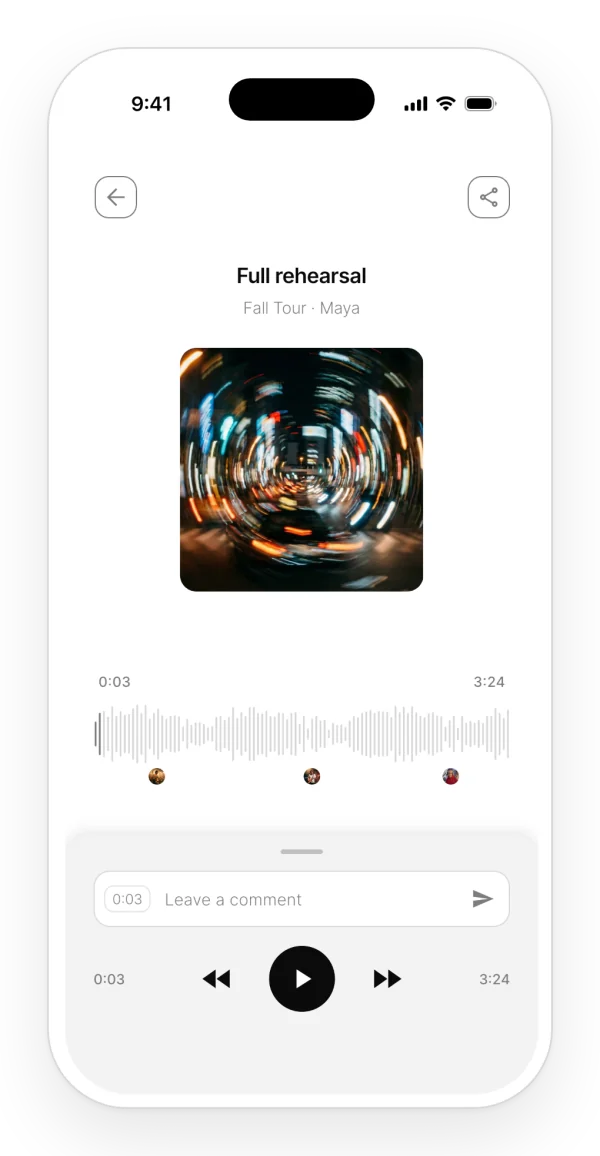
See the audio in full, with its waveform and its comments.
Where it is:
- Mobile: tap the mini player. At the top right you have «Edit audio» (owner or editor only) and share.
- Web: «Open full player». An «Audio Player» panel opens with the «Comments» column.
Step by step:
- Mobile: tap or drag on the waveform to jump to that point. Drag the handle to expand the bottom panel.
- Web: use the keyboard: ← and → jump 10 seconds back or forward, Space plays or pauses and Esc minimizes the player.
What it does not do: on your phone the waveform is decorative: it has the same shape for every audio.
On mobile and on the web: on the web the waveform is the audio’s real one. If the file is over 60 MB, you see a flat line.
Queue, skipping and repeat
- Queue: it is the list you see in the project at that moment, with any search and filters applied. When an audio ends, the next one plays. The audios in a note form their own queue, in the order they appear in the note.
- Skipping: on your phone, 5 seconds with the comments panel expanded and 10 seconds in an audio block inside a note. On the web, 10 seconds.
- Repeat: on your phone, expanding the comments panel loops the current audio, so you can comment calmly. Collapsing the panel stops the loop.
What it does not do: there is no speed control (except in the audio editor), no shuffle and no editable queue.
Background playback and lock screen
- Mobile: playback continues in the background. The lock screen shows the name, the project or note and the author, without artwork, with previous, play/pause, next and the position bar. It pauses during a call or when you unplug your headphones.
- Web: there are no system controls of its own; it depends on your browser.
Timestamped comments
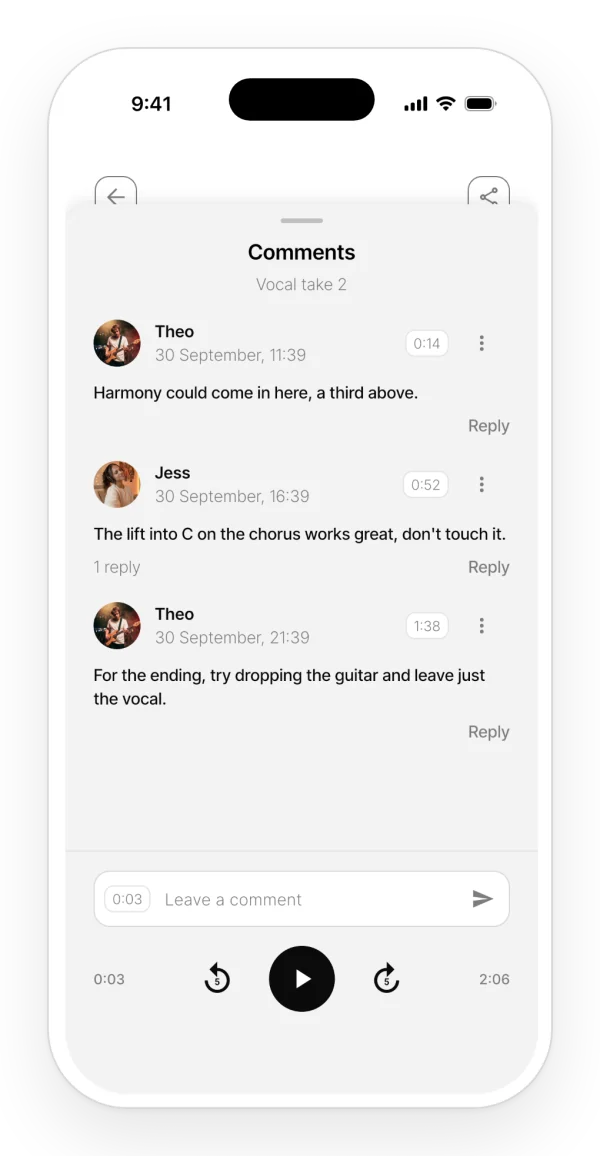
Leave a comment at an exact second of the audio, such as “the vocal comes in here”.
Where it is:
- Mobile: full player → the «Leave a comment» field, which shows the current second on its left.
- Web: full player → «Comments» column → «Comment at» followed by the current second.
Step by step:
- Take playback to the point you want to comment on.
- Write the comment.
- Send it. You will see «Comment added», and the others get it in real time.
The timestamp is the second at the moment you send, not when you start typing. The other members of the project get a «New comment» notification.
On the waveform, each second with comments shows the avatar of whoever commented, or a +N count if there are several. Tap a marker: on your phone it jumps 5 seconds before the comment and opens its thread; on the web it jumps to the exact second.
Limits:
- Anyone with access to the project can comment, viewers included.
- The Free plan cannot comment (see the limits table): trying opens the plans screen. Pro and Band have no limit.
- On the web, a comment can be up to 1,000 characters.
What it does not do: you cannot comment on a range (from one second to another), only on a point.
Reply, edit and delete comments
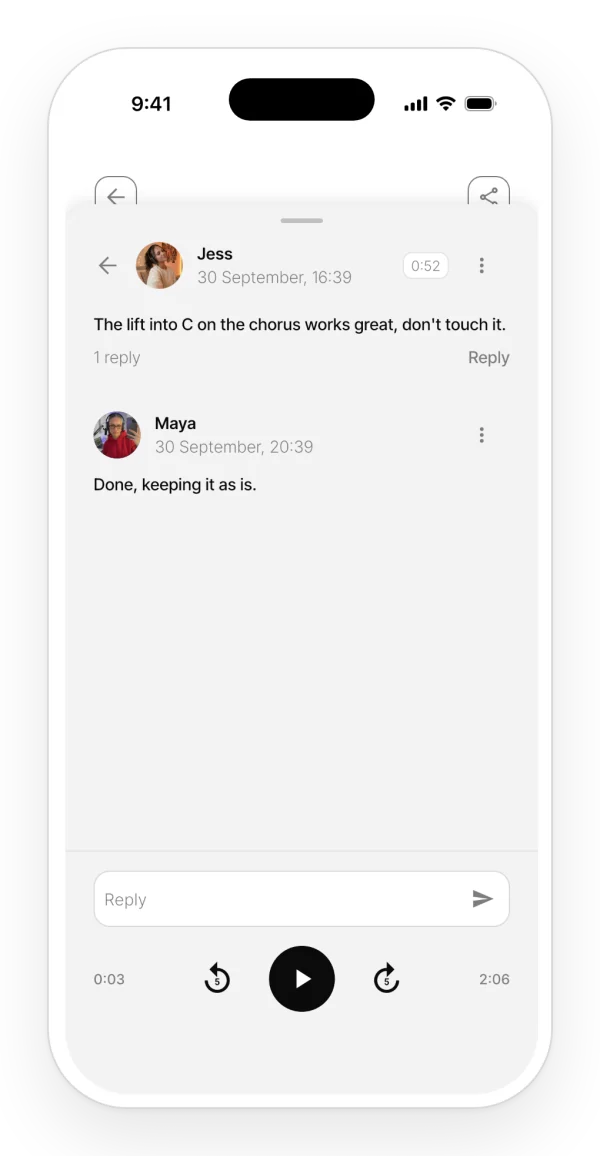
- Reply: tap the comment, «Reply» or the number of replies. The reply takes the comment’s second. There is only one level of replies.
- Edit: only the author. On your phone, ⋮ → «Edit comment»; on the web, the pencil icon.
- Copy: only on your phone, ⋮ → «Copy».
- Delete: the author, the audio’s owner and the project’s owner can delete a comment. Deleting a comment also deletes its replies.
Download and share an audio
Where it is:
- Mobile: the project list → ⋮ → «Export» (M4A) or «Export WAV». The system share menu opens. In the full player, the share icon does the same as «Export».
- Web: ⋮ → «Download» or «Download WAV».
The WAV has no more quality than the saved M4A. It is useful for opening the audio in a DAW.
What it does not do: there are no public links to share an audio and no batch export.
On mobile and on the web: on your phone, only the owner and editors see the ⋮ menu. On the web, any member can download, viewers included.
What happens to an audio after you record it
- Web: the audio is converted and uploaded to the cloud first, and only then appears in the project. If something fails, nothing is left half-done.
- Mobile: the audio appears right away and uploads to the cloud in the background. Without a connection, it waits in a queue and retries. Recordings made from the home screen upload the next time you open the home screen. Until an audio has uploaded, it cannot be played from another device.
Edit the audio
To change the speed or the key, add effects or record takes over an audio, open it in the editor: ⋮ → «Edit audio», or the editor button in the full player. Only the owner and editors can use it. Everything is explained in Audio editor.