
Chapter 4
Notes, Collaboration and the Band Plan in Zoundroom
Updated
On this page
- Create a note
- The note editor
- Character limit
- Insert an audio in a note
- Record from a note
- Saving and editing together
- Note privacy and the PIN
- Rename, move, copy and delete notes
- Share a project and roles
- Invite with a code
- Join a project with a code
- Change a role or remove access
- Leave a project
- What the Band plan is and how to get it
- Band profile and invitations
- Band roles, leaving and deleting the band
- The Band space
- If the Band plan expires
This chapter covers notes, where you write lyrics with their takes right next to them; sharing a project with roles and invite codes; and the Band plan, which gives your band a shared space. Recording inside a note is in Record and comment, and the Auralis assistant that works on your notes has its own chapter: Auralis.
Create a note
A note is a page of text inside a project. Use it for lyrics, ideas and reminders, with audios inserted in the text.
Where it is: project → «Add» → «Note». It works the same on your phone and on the web.
Step by step:
- Tap «Note». The note is created with the title «New note» and the editor opens.
- Notes appear in the project’s «Notes» and «All» tabs, newest first.
Limits:
- The owner, editors and members of an active Band can create notes.
- Each note counts as one item toward your plan’s limits (see the limits table).
What it does not do: there are no notes outside a project.
The note editor
Where it is: open any note from the project’s «Notes» or «All» tab.
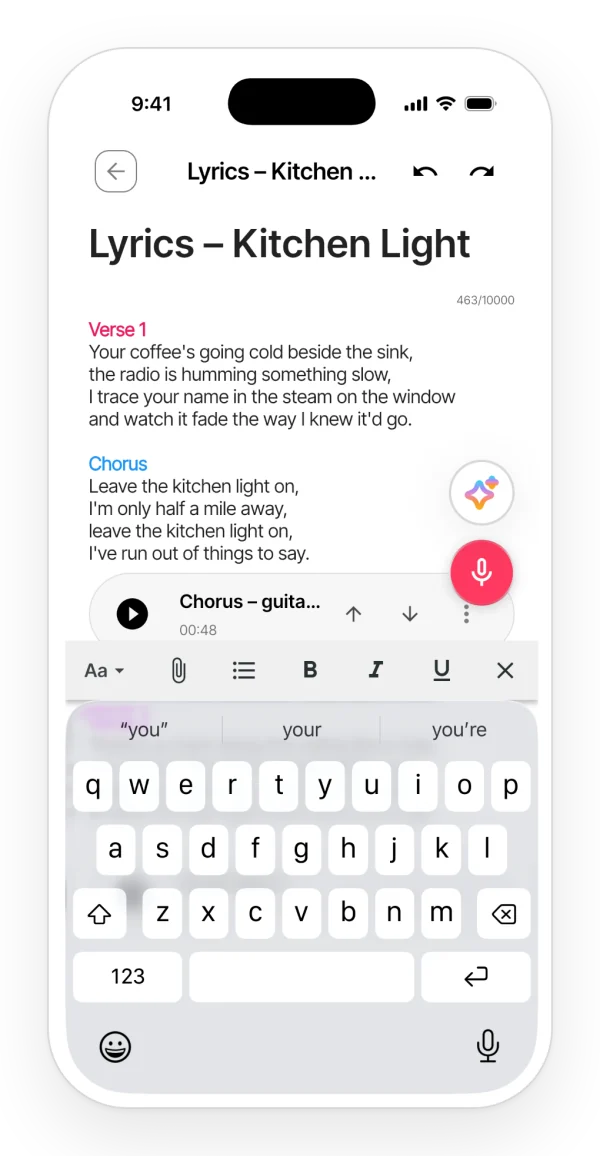
On your phone:
- Title and text: the title goes at the top, with the placeholder «Title» and up to 50 characters. The text goes below: «Write your note here…».
- Format bar: it appears while you type, with the keyboard open. It has the Aa button, the paperclip to insert an audio, bullets, bold, italic and underline.
- The Aa panel («Text format»): paragraph style («Title», «Heading», «Subheading» or «Body»); bold, italic, underline and strikethrough; text color (purple, pink, orange, mint, blue or the default); bullets, numbered list and indentation, up to 5 levels.
- Undo and redo: at the top, next to the title.
- Saving: a small spinner appears next to the title while the note saves.
What it does not do:
- There are no colored sections and no background color, only text color. To mark a verse or a chorus, type the section name and give it a color.
- You cannot pick any font size you like or insert images or tables.
On mobile and on the web:
- On the web, the bar is always visible for anyone who can edit.
- The paragraph style is a drop-down: «Title», «Heading», «Subheading» or «Normal».
- Keyboard shortcuts work: Ctrl/Cmd+Z (undo), Ctrl/Cmd+Shift+Z (redo) and Ctrl/Cmd+B, I and U (bold, italic, underline).
- The «Save» button shows the status: «Saving…», «Saved» or «Save failed».
Character limit
Each note has a maximum number of characters, which depends on your plan (see the limits table). A member of an active Band gets the Pro limit.
On your phone:
- Below the title there is a counter with the characters you have used and the maximum. It turns orange from 90% and red with a padlock when you hit the limit.
- If you go over, your whole last change is undone, including anything you pasted.
- On Free, a message also suggests upgrading for a higher limit.
On mobile and on the web: the web has no counter. If you go over, the change is undone and the «Save» button shows «Max characters limit reached».
Insert an audio in a note
Keep the take next to the lyric, as a pill inside the text.
Where it is:
- Mobile: with the keyboard open, tap the paperclip. «Select audio» opens, with a search box and a tag filter. The list shows your audios from any project.
- Web: the «Insert audio into the note…» drop-down. It only shows the project’s audios.
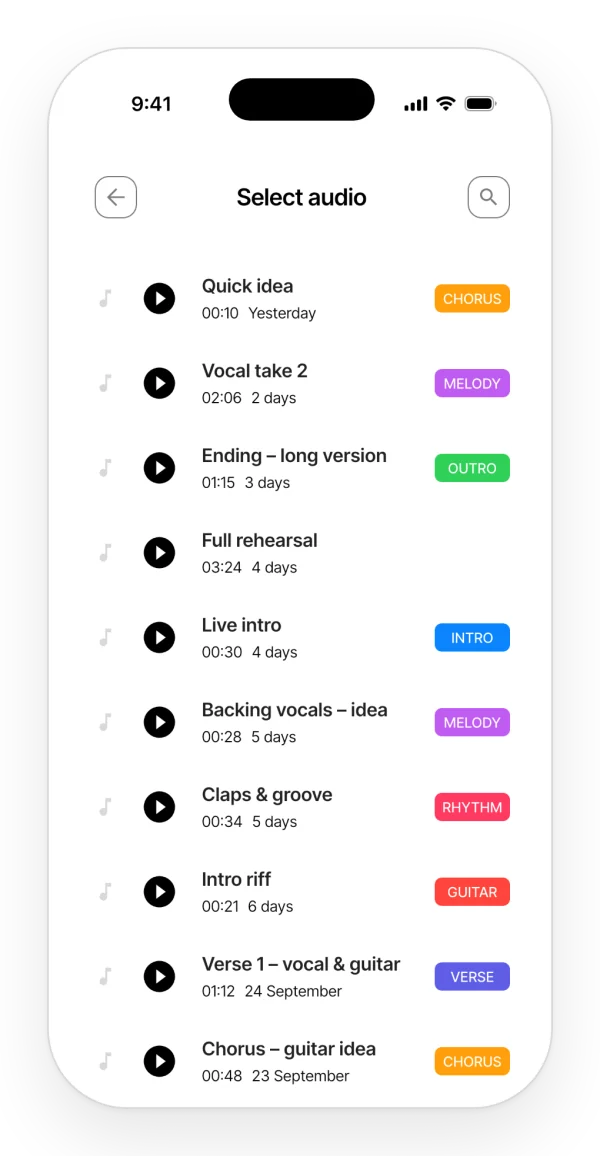
The audio pill:
- Play/pause, the name and the duration.
- On your phone, tapping the name opens a bar to jump 10 seconds back or forward.
- Up and down arrows move it one line up or down.
- Its ⋮ menu has «Rename»; «Remove from note», which keeps the audio in the project; and «Delete», which deletes the audio from the project, not just from the note.
When you press play, all the audios in the note play one after another, in order. Someone who can only read the note sees just the play button.
Record from a note
You can record while you write, and the take is inserted where your cursor is. The steps are in Record inside a note.
Saving and editing together
Saving: notes save on their own as soon as you stop typing and when you leave the note.
Editing together:
- Several people can edit the same note at the same time, from several devices too. Everyone’s changes show up instantly and are merged.
- What you do not see: other people’s cursors, avatars or “someone is editing” notices. No platform shows who is connected.
On mobile and on the web:
- On the web, the editor shows the connection status next to Collaboration: «Connected», «Connecting…» or «Disconnected».
- On your phone, viewers do not get changes live: to see them, they leave the note and open it again. On the web they do get them.
Note privacy and the PIN
Encryption: the title and text of your notes are stored encrypted on the server. There is no password for individual notes, and it is not end-to-end encryption.
PIN (mobile only): it locks the whole app, not individual notes. You turn it on in «My profile» → «PIN Settings»; when you open the app you will see «Enter your PIN». Everything about it is in Account and plans.
What it does not do: there is no PIN on the web.
Rename, move, copy and delete notes
You do it from the note’s ⋮ menu, as explained in Projects. What is specific to notes:
- Move: you can only move notes you created.
- Copy: on your phone, the copy’s title shows that it is a copy; on the web, it keeps the title.
- Delete: the note’s Auralis conversations are kept.
What it does not do: there is no trash. A deleted note cannot be recovered.
Share a project and roles
Invite other people into a project and decide what each of them can do.
Where it is:
- Mobile: project → the share icon at the top right → «Share Project». The «Members» section lists each person with their role.
- Web: project → «Manage collaborators» → the «Members» window.
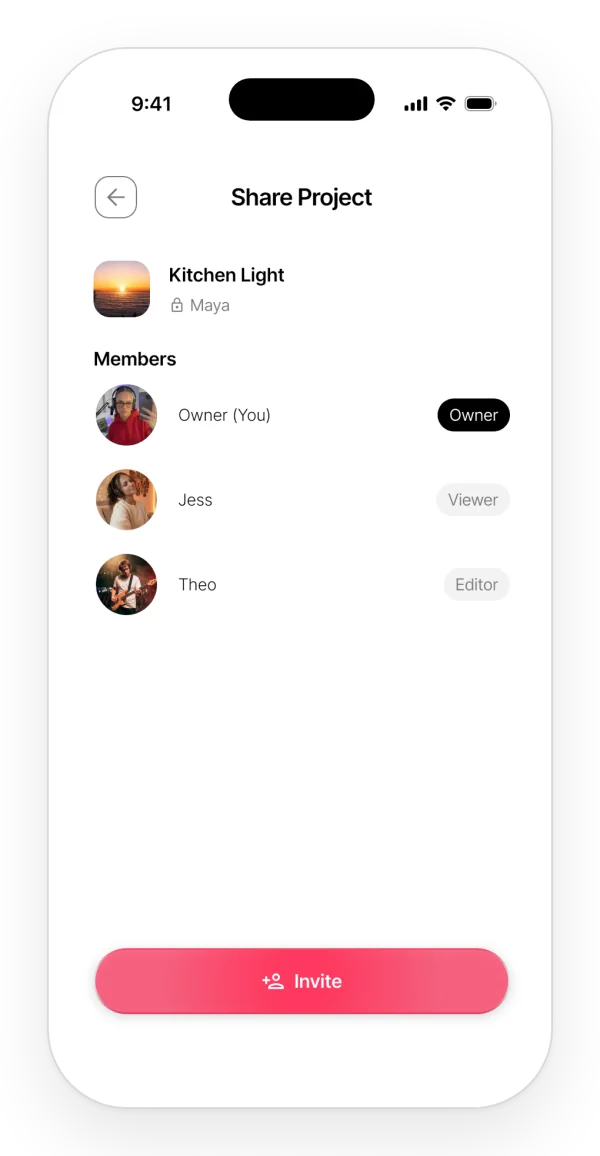
Roles:
| Role | What they can do |
|---|---|
| Owner (whoever created the project) | Everything, plus inviting, changing roles, removing access and deleting the project |
| «Editor» | Create, edit and delete notes, audios and files; record; change the title and the cover. They can only move what they created themselves. They cannot invite |
| «Viewer» | Read only: open notes without editing them and play audios. They can comment on audios. On the web they can also download |
In band projects, every band member has full access: see The Band space.
What it does not do:
- You cannot share by email or with a public link.
- There are no separate permissions for each note.
Invite with a code
Where it is: «Share Project» → «Invite». Only the owner sees it.
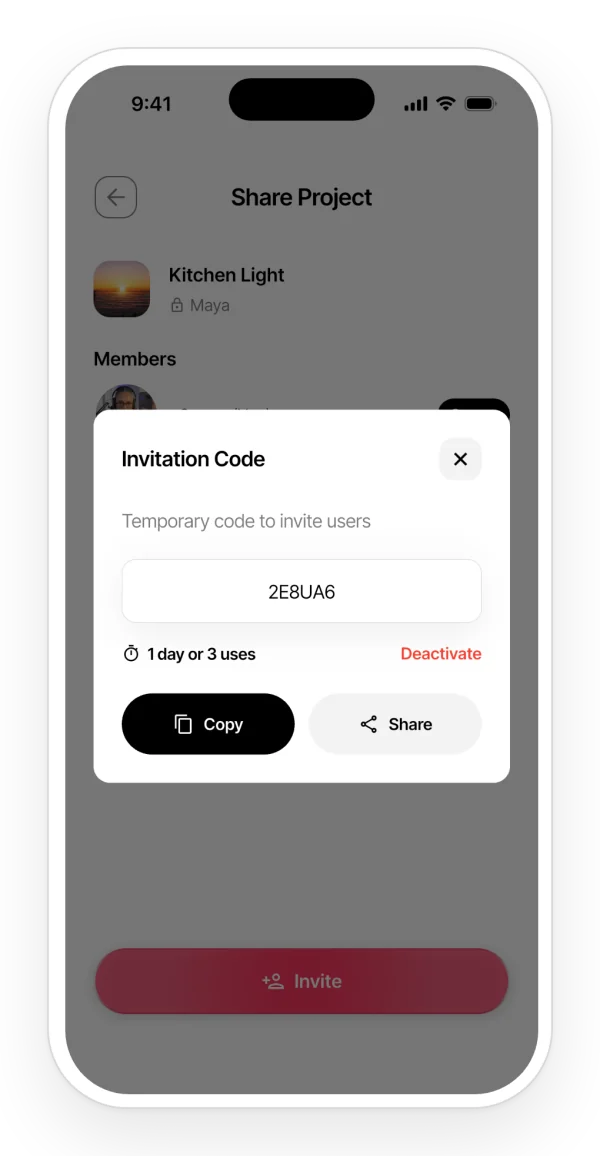
Step by step (mobile):
- Tap «Invite». The «Invitation Code» dialog shows a 6-character code, valid for 1 day or 3 uses.
- Choose what to do with it: «Copy»; «Share», which sends «Join my Zoundroom project ”…” with this code: …»; or «Deactivate», which cancels the code.
On your phone, an invitation always joins as «Viewer». You can change the role afterwards.
Limits: on the Free plan, the number of guests per project is limited (see the limits table).
On mobile and on the web: on the web you choose «Viewer» or «Editor» before you click «Invite». The code cannot be deactivated on the web.
Join a project with a code
Where it is: home screen → the + button → «Join a project».
Step by step:
- Paste the code («Paste the project code here»).
- Tap «Join Project».
- If it works, you will see «Joined project successfully!». The project appears in «Shared with me».
Limits: on Free, the number of projects that can be shared with you is limited (see the limits table).
What it does not do: this code does not work for a band. A band has its own code: see Band profile and invitations.
Change a role or remove access
Where it is: «Share Project» → tap a member’s role. Only the owner can.
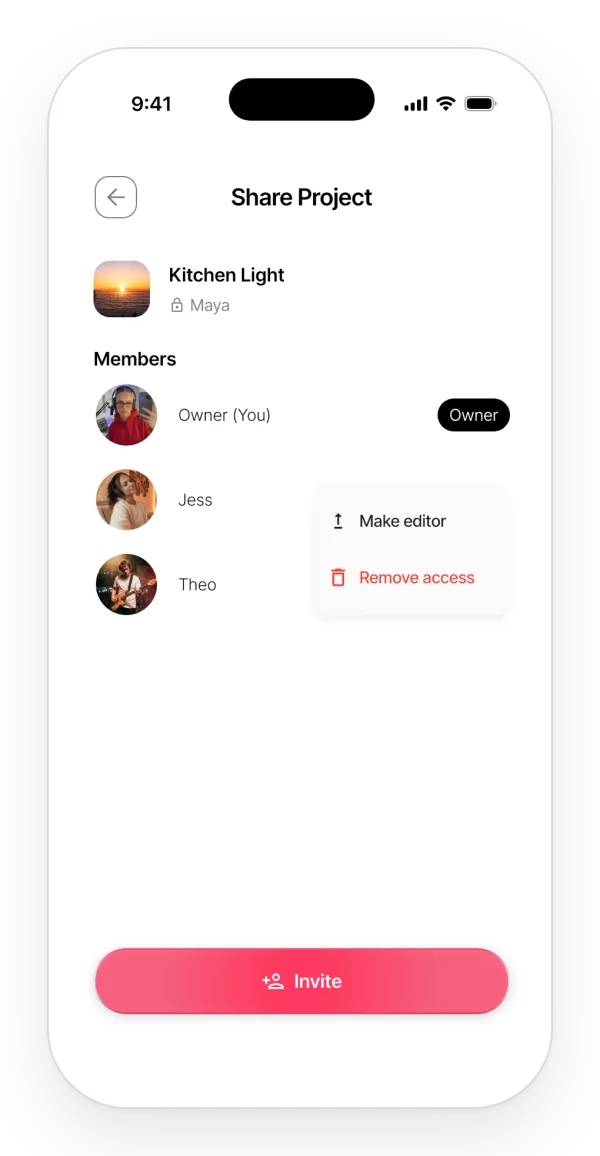
Options:
- «Make editor» or «Make viewer»: the change is immediate.
- «Remove access»: asks for confirmation («Remove member?»). If that person had the project open, the app takes them back to the home screen.
What it does not do: you cannot transfer ownership of a project.
On mobile and on the web: on the web there is a role drop-down and a trash icon, except in band projects.
Leave a project
Only on your phone: the project card → ⋮ → «Leave project». The details are in Projects.
What the Band plan is and how to get it
Band is a subscription that one person (the owner) pays to create a band with its own members, the owner included.
- The band has a Band space with shared projects.
- Inside the Band space, every member gets the Pro benefits without paying.
- The maximum number of members is in the limits table. More on the Band plan page.
Where it is:
- Mobile: the space selector → «Band», or «My profile» → «Zoundroom Band».
- Web: the band page.
- If you do not have a band, you will see the introduction «The shared space for your Band’s songs».
Step by step:
- Tap «Get Zoundroom Band» and pay on the purchase screen.
- Mobile: the band is created automatically with a default name, which you can change later.
- Web: you choose the name when you create it, in the «Create your Band» window.
Limits: a person can only be in one band.
Band profile and invitations
Profile: «Zoundroom Band» → «Edit profile». Only the owner can change the band’s name and photo («Change photo»). The photo is used as the Band space’s avatar.
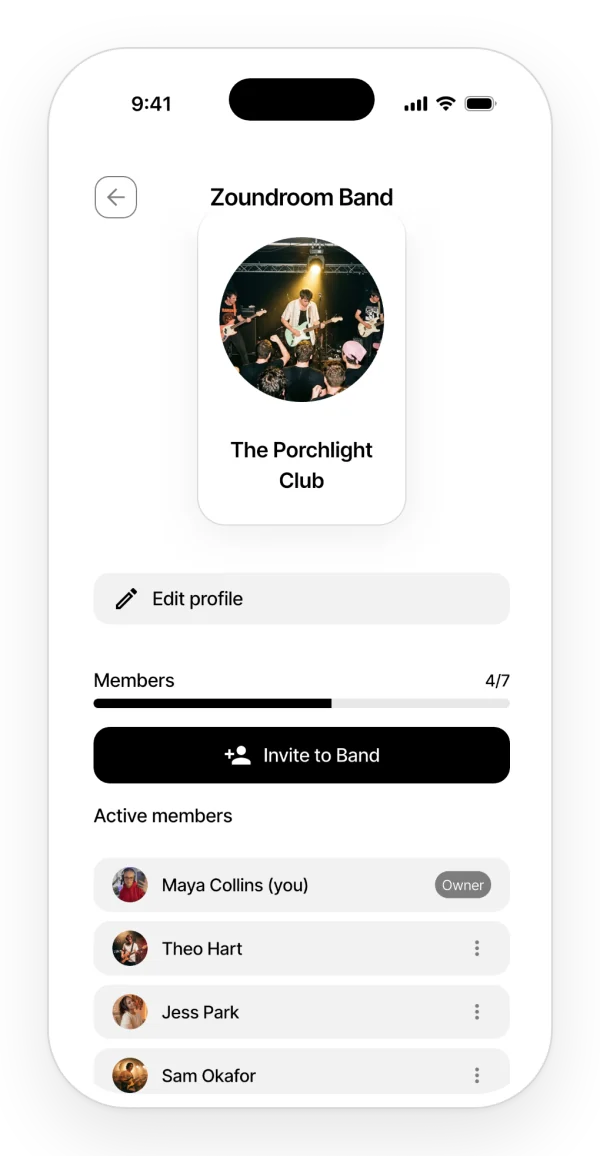
Invite: the black «Invite to Band» button. Only the owner sees it.
- The code has 8 characters and is valid for 1 day or a set number of uses. You can «Copy», «Share» or «Deactivate» it.
- On your phone, «Deactivate» cancels the code and creates a new one straight away.
- The screen shows how many «Members» the band has out of the maximum.
Join a band: «Join a Band with a code» → type the code → «Join». You will see «You joined …» with the band’s name.
If it does not work, you may see «Invalid or expired code», «Maximum uses reached» or «The Band has reached its member limit».
Band roles, leaving and deleting the band
There are two roles: owner (the person who pays) and member.
- The owner can edit the profile, invite, kick out a member (⋮ → «Kick») and delete the band.
- A member can see the list of members and tap «Leave Band» (red text at the bottom of the screen). When they leave, they lose access to the band’s projects.
- The owner cannot leave the band, only delete it.
«Delete Band»: deletes all the band’s projects, files and notes, and removes its members. It cannot be undone. Members who have the app open go back to «My space».
The Band space
Projects:
- Projects created in the Band space belong to the whole band.
- Any member can create, edit and delete band projects.
- Band projects do not count toward your personal limits.
- A personal project cannot be moved into the band. You can move or copy its content into a band project.
Tags: you see the tags other members have put on their audios, but you can only edit your own.
Auralis: in the notes of band projects, each member has their own daily responses. The figures are in the limits table.
If the Band plan expires
The band is locked for everyone when the owner stops paying.
- Mobile: the audios, notes and files of the band’s projects are locked with a padlock and cannot be opened. Tapping them shows «Band Plan Expired».
- Web: notes can be read, but not edited.
- On both: you cannot create content or record, and nothing from Auralis can be saved.
How to reactivate it: only the owner has the «Reactivate Band Plan» button.
Your data: nothing is deleted when the plan expires.