
Chapter 5
Auralis, Zoundroom’s Assistant: How to Use It
Updated
On this page
Auralis is Zoundroom’s writing assistant. It works on the note you have open: the lyrics or the ideas for a song. This chapter covers how to open it, the quick actions, saving an answer to the note, your conversations, the questions it asks about you, your Creative DNA, its limits and what it does with your data. Notes themselves are in Notes, collaboration and Band.
What Auralis is
It only works with text. It does not generate music, vocals or audio, and it does not listen to your recordings: it only knows their name, length and date.
How it differs from a generic chat:
- It knows the note, the project, the names of its recordings, your Creative DNA and what you want from the song («What this project is about»).
- It answers briefly, in about 120 words and with at most 3 options.
- It does not flatter you or make things up, and it ends with a single question or suggestion.
- It sticks to your work: it is not a companion or a therapist.
Auralis is on for everyone, on your phone and on the web. More on the personalized AI assistant page.
What it does not do:
- It does not write the whole song or rewrite the whole lyric, unless you ask it to.
- It does not read your other notes or projects.
Open Auralis
Where it is: project → «Notes» tab → open a note → the Auralis button.
- Mobile: the round white button with the Auralis icon, at the bottom right, above the microphone.
- Web: the floating «Open Auralis» button, at the bottom right.
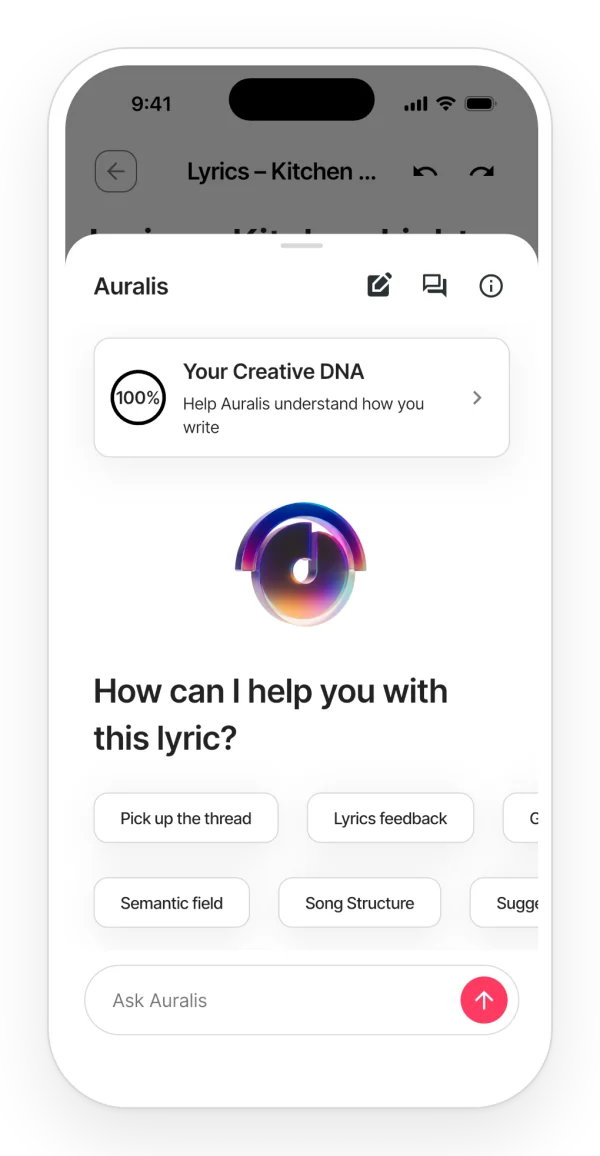
The panel opens with that note’s latest conversation. The header has «New conversation», «Conversations about this note» and an info button. You type in the «Ask Auralis» field. While it answers, you will see «Auralis is preparing a response» and the «Stop» button.
Limits:
- The note has to be saved first. If it is not, you will see «I’m waiting for the latest note changes to be saved.».
- Viewers can chat, but they cannot save to the note.
- It needs a connection.
On mobile and on the web:
- Mobile: a bottom sheet that covers 90% of the screen; swipe it down or tap outside to close it. On a tablet, a side panel you can fold away.
- Web: a bottom sheet on a phone and an overlay panel on a tablet. On a computer (1280 px wide or more), the panel docks on the right, with the note still visible and editable.
The first time
The first time you open it, you will see «This isn’t just another chat»: Auralis sees the note, your recordings and what you have told it about yourself, and it works on your lyric without telling you what you can write. It has the «How Auralis uses your data» link and the «Get started» button.
It only appears once per account, on all your devices.
Quick actions
In a new conversation you will see «How can I help you with this lyric?» with seven quick actions.
Step by step:
- Tap a quick action. It is not sent: it fills in the field with the request, which you can adjust.
- Tap «Send».
| Quick action | What it actually does |
|---|---|
| «Pick up the thread» | Reminds you where you left the lyric and suggests one way to carry on, about 10 minutes of work. |
| «Lyrics feedback» | Describes what the lyric conveys as it stands: what comes across, the tone, who it speaks to, one ambiguous line and one strong line. It does not correct or score. If you filled in «What this project is about», it compares the lyric with what you want to convey. |
| «Get unstuck» | Finds where you got stuck (from your selection or from the note) and gives 2 or 3 different ways out, one line each. |
| «Chord Progression» | Two progressions with chord symbols. It uses the key you give it or suggests one. |
| «Semantic field» | At least 10 words or ideas grouped into up to 3 fields. It does not give rhymes or synonyms. |
| «Song Structure» | With lyrics: describes the sections and suggests one change. Without lyrics: suggests common structures for the genre you name. |
| «Suggest Title» | Up to 3 different titles, without using the first line or the chorus word for word. |
If you type your own question instead, it is a free chat with the same answer rules.
Chat with Auralis
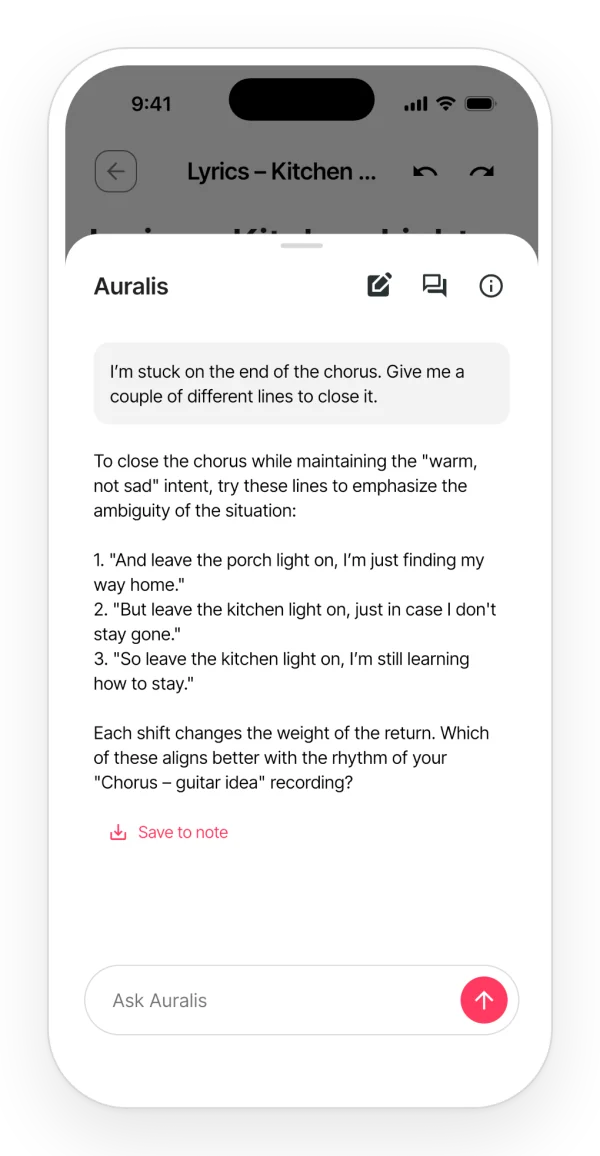
- Stop: «Stop» cuts the answer off. If it had already started writing, you will see «It cut out halfway through. You can ask again without using another response.» and the «Try again» button, which does not use another response.
- Context: Auralis remembers the last 6 exchanges of the conversation.
- Keyboard on the web: Enter sends and Shift+Enter adds a line break.
Limits: a message can be up to 8,000 characters. If the note is too long, Auralis asks you to point to a specific part; that does not use a response.
Ask about specific lines
If you have text selected in the note when you send, Auralis takes it as the focus, while still reading the whole note.
- Mobile: select the lines before you open Auralis, because the sheet covers the note.
- Web on a computer: you can select with the panel open.
The panel does not show that a selection was sent.
Save to the note
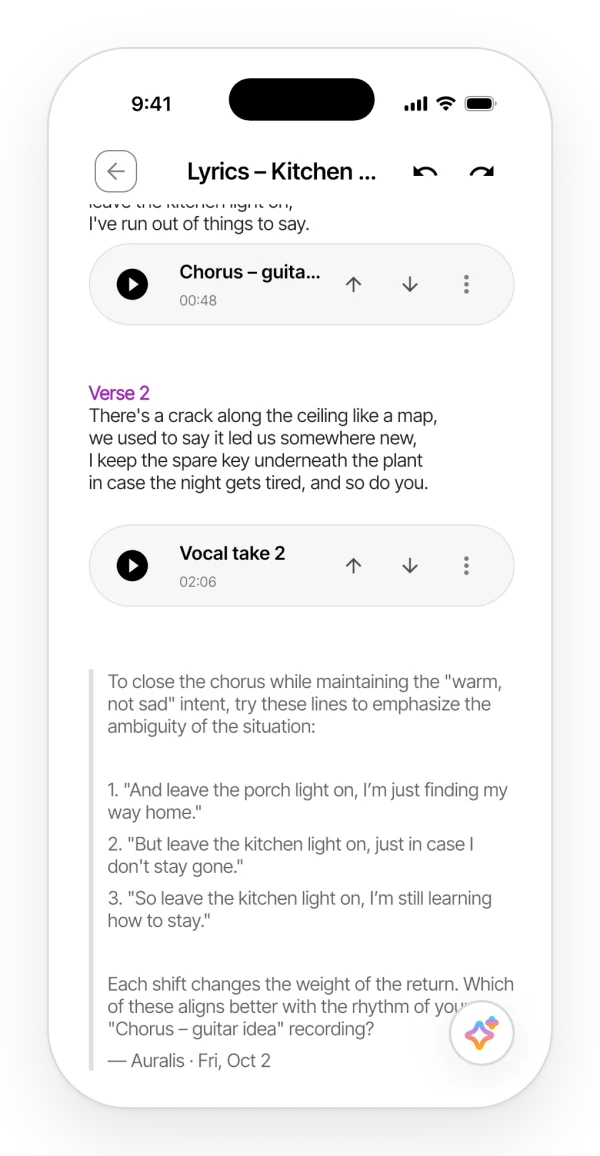
Copy an answer into the note as an editable quote.
Step by step: tap «Save to note», under the answer. A quote block with the answer and the signature «— Auralis · …», with the date, is added at the end of the note. You will see «Saved to note».
Limits:
- Only people who can edit the note can save to it. Everyone else sees «Only someone who can edit the note can save here».
- If the answer does not fit in the note’s character limit, it is not cut short: you need to free up space.
- Tapping twice does not duplicate the quote.
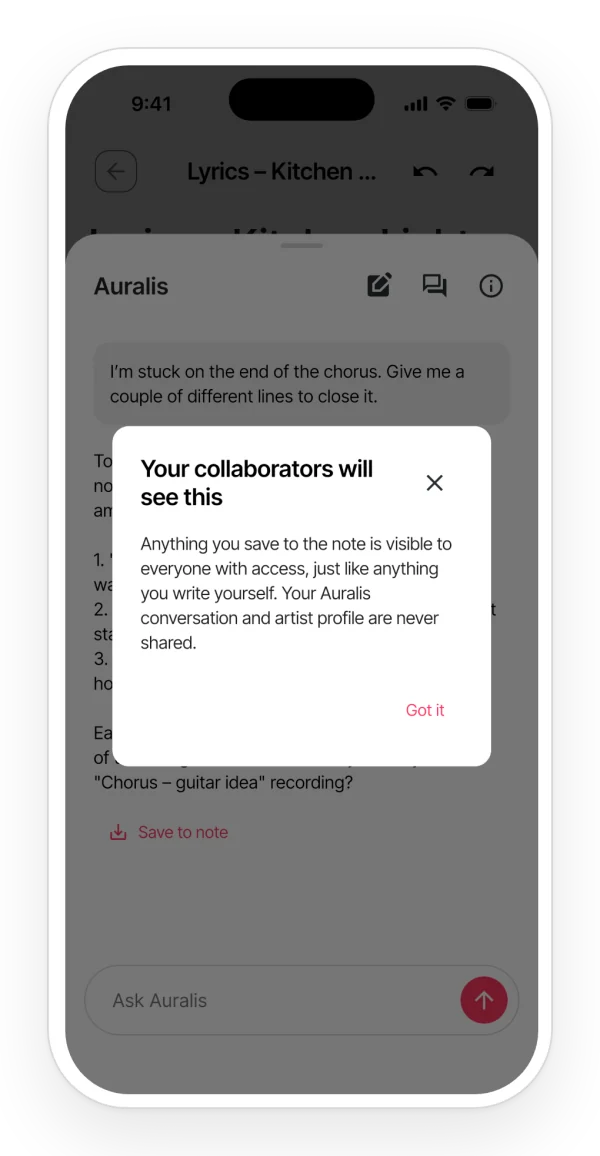
The first time in a shared project, you will see the notice «Your collaborators will see this»: what you save to the note can be seen by anyone with access, but your conversation and your profile are never shared. Accept it with «Got it».
What it does not do: it does not insert the answer at the cursor or replace the selected text.
Conversation history
Where it is: the panel header → «Conversations about this note». It shows your last 30 conversations, each titled with your first message. Tap one to open it.
New conversation: «New conversation» starts from scratch and shows the quick actions again.
Delete: the trash icon → «Delete this conversation?». Anything you saved to the note stays there.
Your conversations are private: a collaborator cannot see yours, even when they are about the same note.
If you delete the note, its conversations are kept, read-only.
On mobile and on the web: on the web, «Settings» → «Conversations with Auralis» lets you read and delete all your conversations, including those of deleted notes. This manager is only on the web.
Questions about you
Three required questions, asked once. If your Creative DNA does not have the answers yet, Auralis asks before your first request («Before I get to work, I need to know three things about you.»):
- sounds, genres or textures;
- emotions;
- the reason you make music.
You answer by typing in the field. When you finish, Auralis gets on with what you asked. Your answers are saved in your Creative DNA.
Four optional questions, now and then. Auralis only asks them when they help it answer you:
- artists close to you;
- first person, story or images;
- languages;
- whether you work alone or in a group.
You can skip them with «Not now»; a skipped question does not come back. These answers do not appear on any screen.
None of these questions use responses.
Creative DNA
A 10-question questionnaire about your artistic identity, which Auralis uses as your profile.
Where it is:
- The «Your Creative DNA» card in the Auralis panel.
- Mobile: «My profile» → «My creative DNA».
- Web: «Settings» → «My creative DNA».
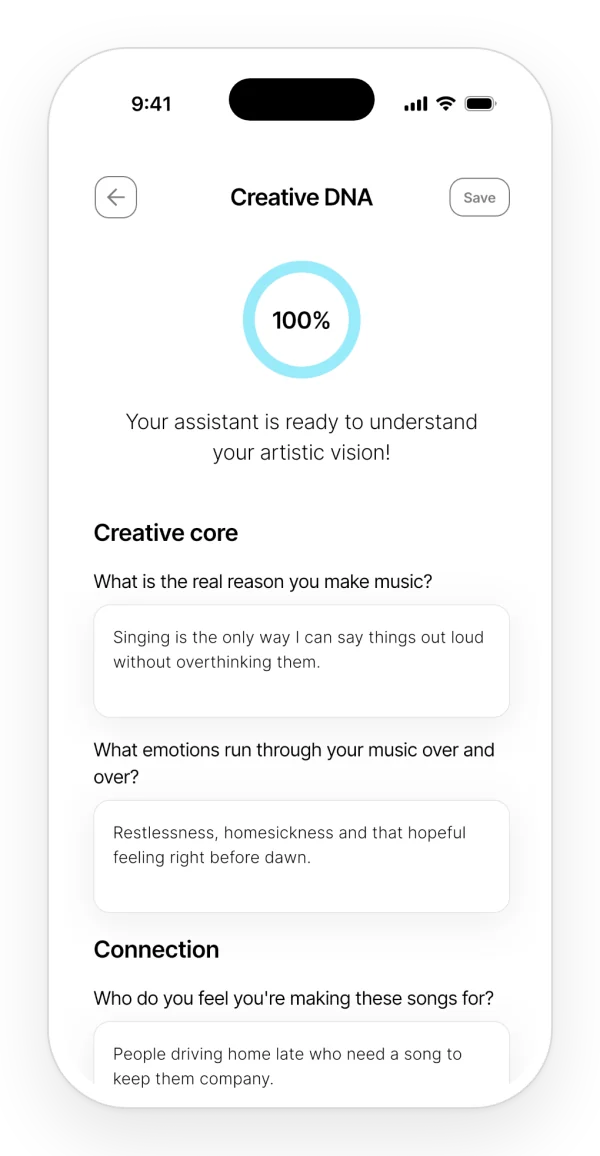
It has seven sections: «Creative core», «Connection», «Origin», «Sound language», «Life moment», «Creative process» and «Emotional universe». The questions are about why you make music, your emotions, who you make it for, the first spark, your sounds, the stage you are at, your tensions, what triggers your creativity, what comes naturally to you, and what place your music would be if it were one.
Step by step:
- Answer the questions you want.
- Tap «Save», at the top right.
The percentage shows how many of the 10 you have answered. At 100% you will see «Your assistant is ready to understand your artistic vision!».
Limits: if you leave without saving, you lose your changes. Auralis only needs the 3 basic answers (sounds, emotions and the reason); if they are missing, it asks for them in the chat.
Your collaborators do not see your Creative DNA.
«What this project is about»
The private card at the top of each project, where you say where the song stands and what you want it to convey. How to fill it in is explained in Projects.
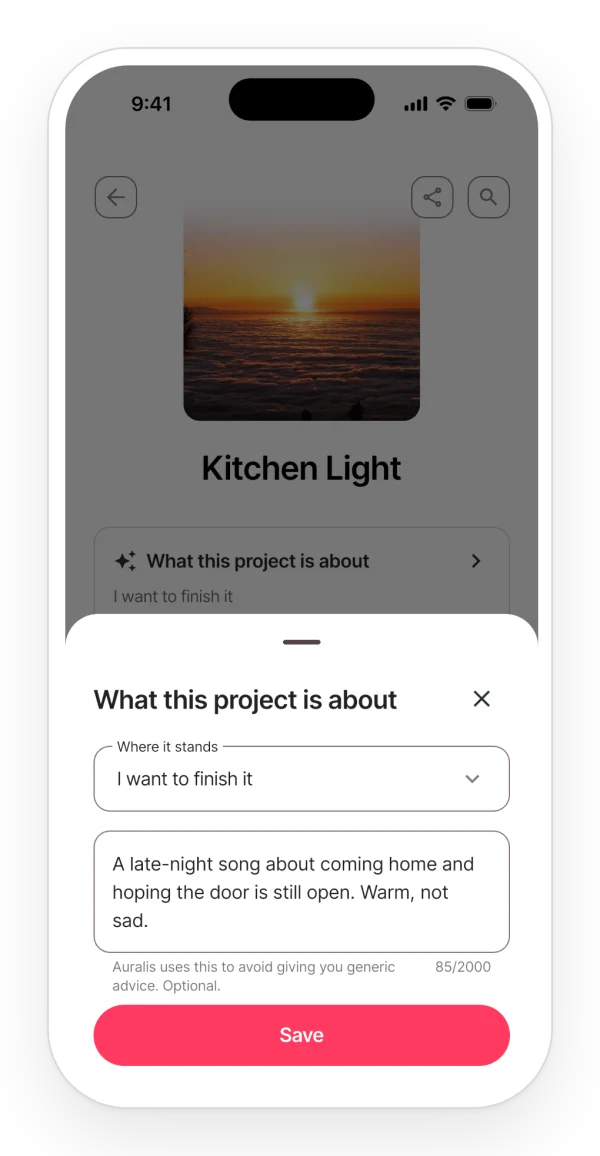
Auralis uses it above all in «Pick up the thread», «Lyrics feedback» and «Suggest Title». It is private to each user, and saving it does not use responses.
Auralis limits
What is limited is the number of answers Auralis generates. The figures for each plan are in the limits table.
- Reset: the daily count resets at 00:00 UTC and the monthly one on the 1st.
- Band projects: in the notes of a band project, the band’s allowance is used, even if your own account is Free.
- What does not use responses: the questions about you, safety notices, errors before it starts answering and the retry after a cut-off.
When you run out, you see a notice that depends on your plan: on Free, «You’ve used all your responses for today» with the «See what’s included in Pro» link; on Pro, «You’ve reached the daily limit»; in a band, «Auralis is resting until tomorrow».
What it does not do: there is no counter of remaining responses.
Privacy: what Auralis uses and what others see
The «How Auralis uses your data» screen explains what it reads, where it is processed and what is kept.
What Auralis receives:
- The title and the full text of the note, including what collaborators wrote.
- Your selection, if there is one.
- The project and the names of its recordings, never the audio.
- Your Creative DNA and your answers about yourself.
- What you want from the project.
Where it is processed: on Google Cloud (Vertex AI), in an EU region.
What is kept: your conversations, in your account, and only you can read them.
What your collaborators see: only what you save to the note.
Analytics: only events without content (it was opened, it answered, something was saved), and always with your consent. The privacy policy has all the details.
Languages
Auralis answers in the app’s language. The lines it suggests can be in the language of your lyric.
Safety notices and errors
Out of bounds: «This is outside what I can help with, in any context.». This applies to sexual content involving minors, weapons, self-harm, hate, illegal activities and impersonating real people. A lyric about hard subjects (suicide, drugs, violence) is worked on as usual.
Possible false positive: «I couldn’t respond to that. Try putting it another way.».
Personal crisis: Auralis points you to helplines (findahelpline.com) and does not save the conversation.
Common errors:
- «You’re offline. Auralis needs an internet connection to work.»
- «It’s taking too long. Try again.»
- «Something went wrong on our side. It hasn’t counted against your quota.»