Chapter 1
Zoundroom Account and Plans: Sign-In, Profile, Subscription
Updated
On this page
- Create an account
- Sign in
- Recover or change your password
- First steps
- Your profile
- Edit your profile and photo
- App color
- Language
- Notifications
- PIN (mobile only)
- Analytics, privacy and cookies
- Recommend the app and contact us
- Sign out and delete your account
- Free, Pro and Band plans
- Limits of each plan
- Subscribe to Pro or Band
- Manage or cancel your subscription
- If your plan expires
This chapter covers creating your Zoundroom account and signing in, what you can change in your profile, how to protect and close your account, and what each plan includes: Free, Pro and Band. It is the same account on your phone, with the iOS and Android app, and on the web at app.zoundroom.com. When something works differently on the two, you will find it under On mobile and on the web.
Create an account
You need an account to use Zoundroom. You can create one with Apple, with Google or with your email.
Where it is: it is the first screen of the app when you are signed out, the one that says «All your music. One place.». On a computer, go to app.zoundroom.com.
Step by step:
- Tap «Continue with Apple» or «Continue with Google» to use that account. If you did not have a Zoundroom account yet, it is created right away.
- To use your email, tap «Continue with email» and fill in «Name», «Email» and «Password». The password needs at least 6 characters.
- Tap «Sign Up».
- Confirm your email: type the 6-digit code you receive or tap the button in the email.
If you mistype your email’s domain, the app suggests the right one («Did you mean …?»). If that email already has an account, you will see «There’s already an account with this email. Sign in; if you created it with Google or Apple, use that button.».
Limits: the code expires after 24 hours. If the email does not arrive, check your spam folder; you can tap «Resend the email» again every 60 seconds.
What it does not do:
- There is no guest access: you need an account.
- An account created with Google or Apple is not merged with an email-and-password account.
On mobile and on the web:
- «Continue with Apple» is available on iPhone and on the web, not on Android.
- On the web, «Continue with email» opens «Sign in». If you type an email that has no account yet, the web offers to create one with it.
- The web sign-up form also asks for your «Last name», which is optional.
- On the web, you confirm the account with the link in the email. You only type the 6-digit code on your phone.
Sign in
Where it is: on the sign-in screen. Use the same method you created the account with: Apple, Google or email.
Step by step:
- Tap «Continue with email». On your phone this opens «Create account»: switch to «Sign in» from that same screen.
- Type your «Email» and «Password».
- Tap «Sign in».
If you had not confirmed your email yet, the app offers to resend the confirmation email.
On mobile and on the web:
- On the web, if the email or password does not match, you will see «The email or password is incorrect.» and the option to create an account with that email.
- Only on the web can you sign in without a password: «Continue with email» → «Sign in with an email code», then type the code you receive. It works for accounts that already exist.
Recover or change your password
If you forgot it:
- On the sign-in screen, tap «Forgot your password?».
- Type the code you receive by email.
- Type your new password twice.
- You are signed out: sign in with the new password.
If you want to change it (mobile only): «My profile» → «Reset Password». Type your current password, the new one and the confirmation, then tap «Change Password». If you do not remember the current one, tap «Forgot Password?».
What it does not do: if you signed up with Google or Apple, you do not have a Zoundroom password to change.
First steps
The first time you sign in, Zoundroom helps you set up the app and creates your first project.
Where it is: it only appears the first time. If you finish it on your phone or on the web, it counts for both.
Step by step (mobile):
- Say how you make music, «I am a solo artist.» or «I have a band or group», and answer a few questions about yourself: your role, how you start a song, how often you get ideas, where you keep your music, your goals and how you heard about us. You can skip almost all of them.
- Add your photo and pick the app’s color.
- Zoundroom creates «My first project» and suggests recording or importing your first idea.
- Allow or decline notifications.
- Finish with a commitment, which you confirm by pressing and holding the logo.
If you close the app halfway, you pick up where you left off. When you finish, the plans screen appears.
What it does not do: choosing «I have a band or group» does not create a band or turn on any plan. Bands are covered in Notes, collaboration and Band.
On mobile and on the web: on the web there are five steps: welcome, solo or band, your profile (name and photo), the app’s color and your first project, with an audio if you want.
Your profile
Your profile is where you change your details, the look of the app and everything to do with your account.
Where it is:
- Mobile: tap your photo at the top of the home screen to open «My profile».
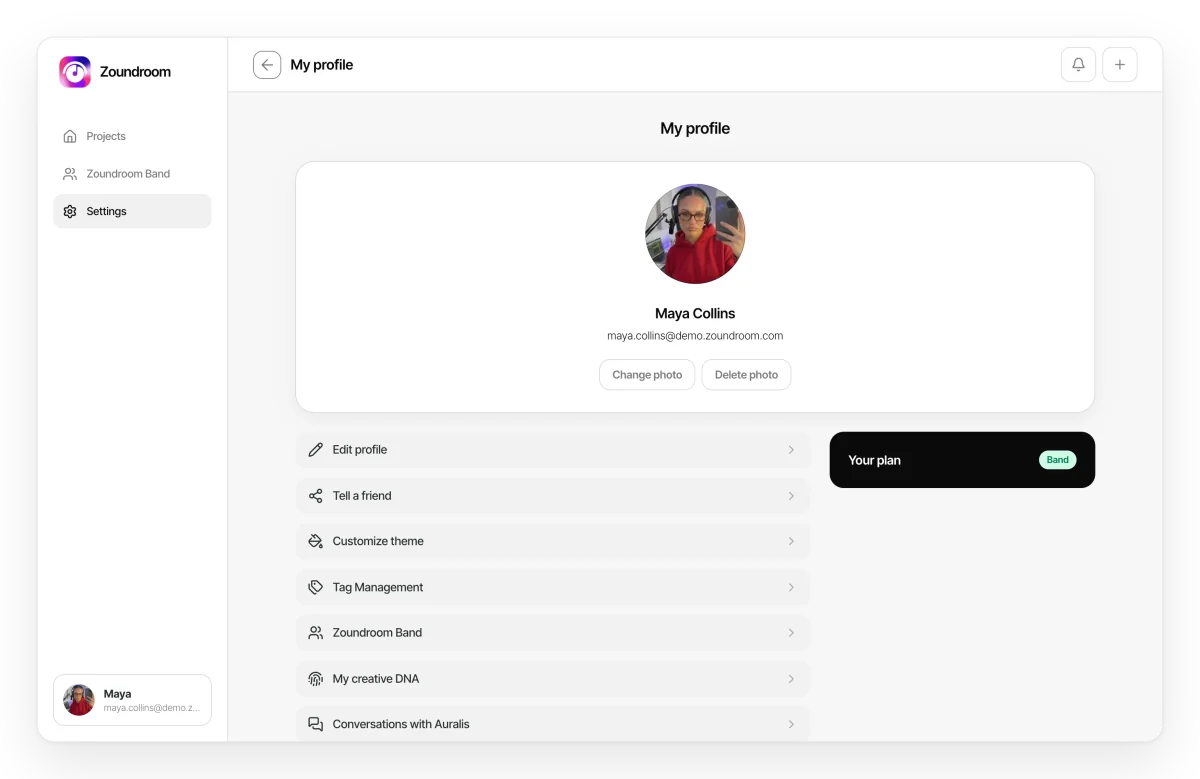
- Web: «Settings» in the side menu, or your name at the bottom.
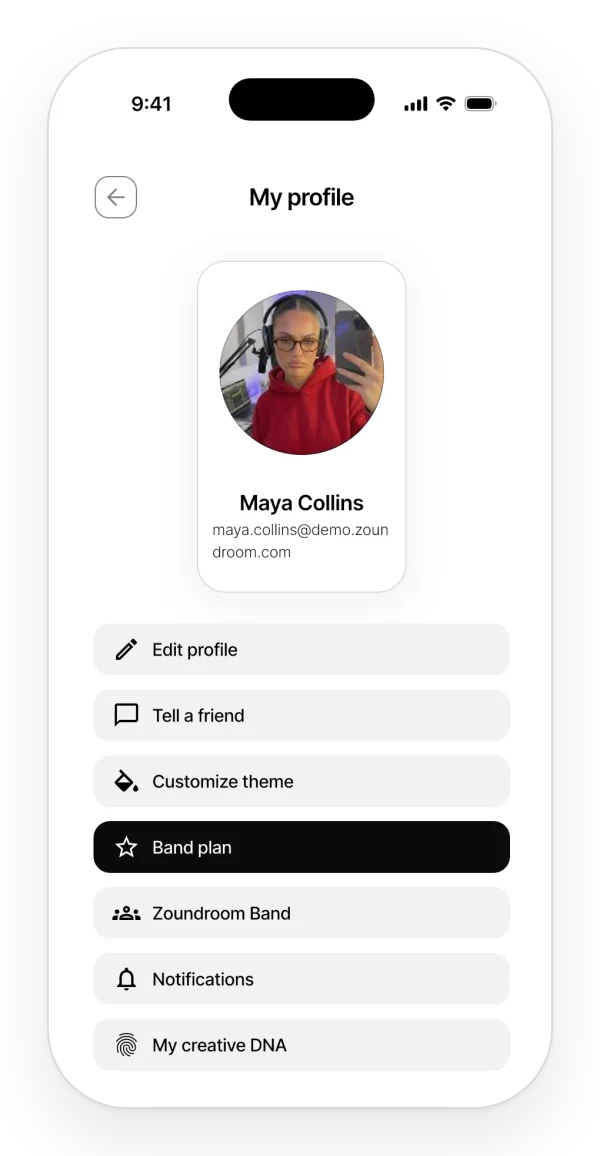
On your phone you will find «Edit profile», «Tell a friend», «Customize theme», «Premium plan» or «Band plan», «Zoundroom Band», «Notifications», «My creative DNA», «Contact us», «PIN Settings», «Analytics and privacy», «Language», «Reset Password», «Log Out» and «Delete Account», plus links to social media, the website and the legal pages. «My creative DNA» is part of Auralis and has its own chapter: Auralis.
On mobile and on the web: the web also has «Tag Management», «Conversations with Auralis», «Cookie preferences» and the «Your plan» card, with «Manage subscription».
Edit your profile and photo
Your name, last name and photo are what the people you share projects with see.
Where it is: «My profile» → «Edit profile».
Step by step (mobile):
- Tap «Add», «Change» or «Delete» to set a photo from your gallery or remove it.
- Change «Name» and «Lastname».
- Tap «Save».
What it does not do:
- You cannot change the account’s email.
- On your phone, the photo comes from your gallery: you cannot take one with the camera.
On mobile and on the web: on the web, you change the photo on the card at the top of «Settings» and it applies right away. Your name and last name are in «Edit profile».
App color
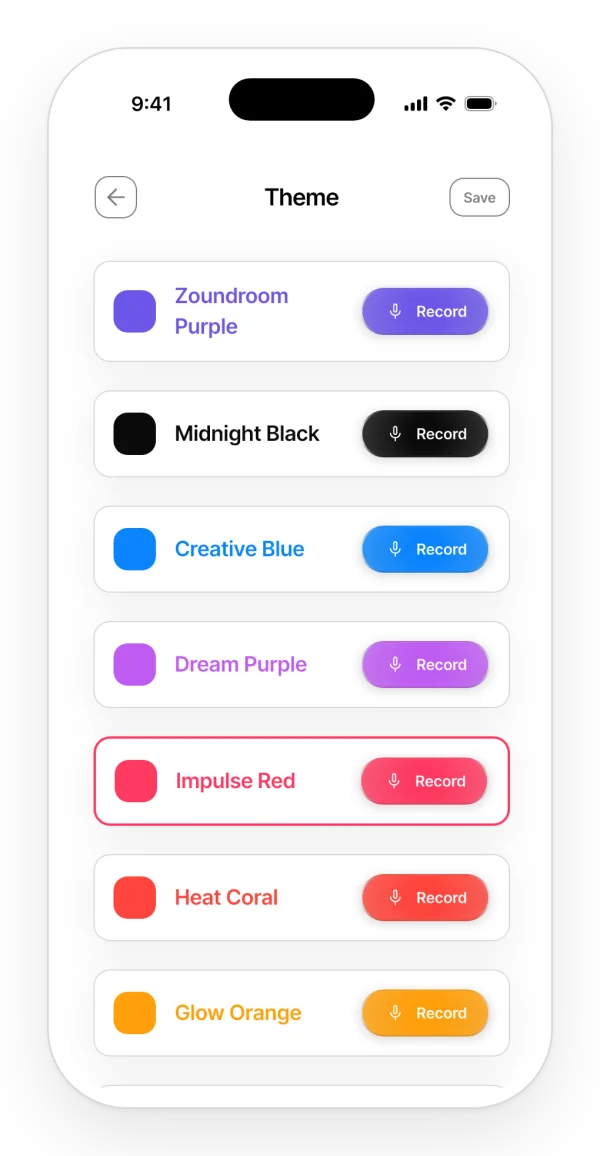
Choose the color of the buttons, the record button and the main actions. There are nine, such as Impulse Red, Zoundroom Purple or Midnight Black.
Where it is: «Customize theme», in «My profile» (mobile) or in «Settings» (web).
Step by step:
- Open «Customize theme».
- Tap a color.
- On your phone, tap «Save». On the web it is saved as soon as you tap it.
The color goes with your account: you will see the same one on your phone and on the web. It is available on every plan, Free included.
What it does not do:
- There is no dark mode.
- Projects do not have a color of their own: the color belongs to the app and is the same everywhere.
Language
Where it is: «Language», in «My profile» (mobile) or in «Settings» (web).
Languages: on your phone, English, Spanish, Catalan, German, French, Italian, Brazilian Portuguese and European Portuguese. On the web, the same ones, with Brazilian Portuguese.
The language is saved on each device or browser, not in your account. At first, the app uses your system language.
Notifications
Zoundroom lets you know what other people do in your projects and in your band. The chapter Projects explains which alerts there are.
Where it is: «My profile» → «Notifications» on your phone, or «Settings» → «Notifications» on the web. Your preferences go with your account.
Step by step:
- Open «Notifications» and turn each type of alert on or off.
- If Zoundroom notifications are turned off in your phone’s settings, the app offers «Open device settings» so you can turn them on.
What it does not do: push notifications only reach your phone, and there are no email alerts.
PIN (mobile only)
The PIN protects the app with a 4-digit code that it asks for when you open it.
Where it is: «My profile» → «PIN Settings».
Step by step:
- Tap «Enable PIN» and choose the code. To change it, use «Change PIN».
- From then on, the app asks for it when you open it and when you sign in.
- If you forget it, tap «Forgot PIN?» → «Reset PIN». You are signed out and, when you sign back in, the PIN is turned off.
Limits:
- After 5 wrong attempts, you have to wait 1 minute.
- With the PIN on, you need a connection to open the app.
- The PIN goes with your account: it applies on all your phones.
What it does not do:
- It is not requested when you come back to the app from the background, only when you open it.
- It does not use Face ID or your fingerprint.
- It does not protect the web.
Analytics, privacy and cookies
Decide whether Zoundroom can collect usage data to improve the app.
Where it is:
- Mobile: «My profile» → «Analytics and privacy» → «Yes, help» or «No, thanks». In some regions the app asks when you start.
- Web: the «Your privacy at Zoundroom» notice offers «Necessary only» or «Accept all». To change your choice: «Settings» → «Cookie preferences».
On mobile and on the web:
- Your choice is saved on each device or browser.
- On iPhone, the system’s tracking prompt only appears if you accept.
All the details are in the privacy policy.
Recommend the app and contact us
«Tell a friend»: opens your phone’s share menu with the link to the app (App Store, Google Play or zoundroom.com on the web). It does not give rewards.
«Contact us»: on your phone it opens your email app with a message to [email protected]. On the web it opens a form with «Title» and «Description».
Legal pages: «Privacy Policy» and «Terms of Service» open their pages on zoundroom.com.
The most common questions are on the support page.
Sign out and delete your account
Sign out: «My profile» → «Log Out». It only affects that device and deletes nothing.
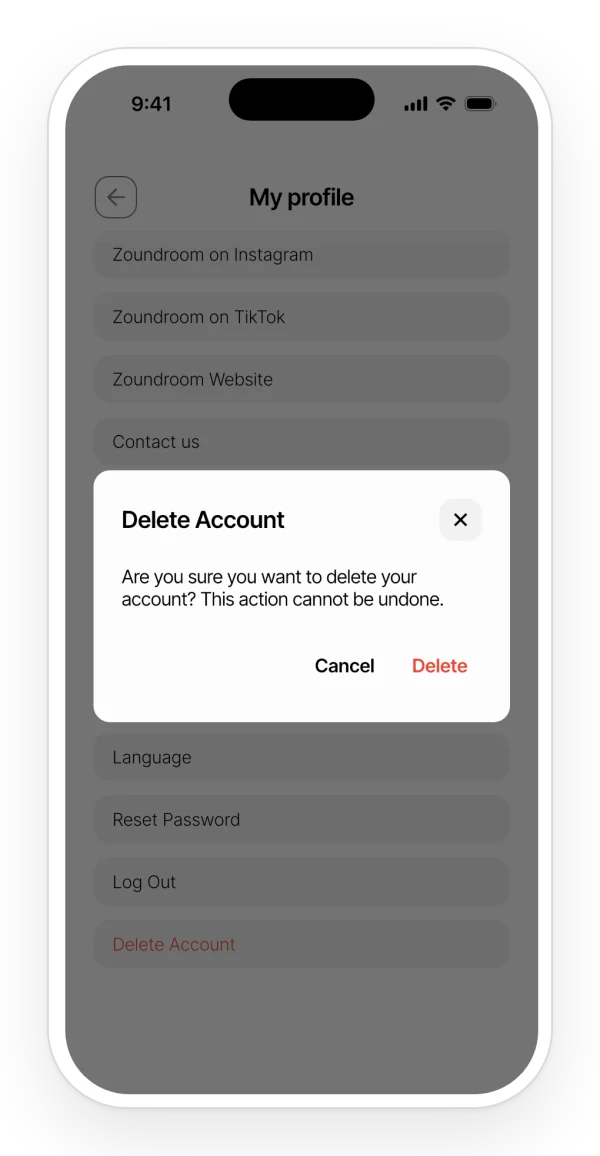
Delete your account: removes your account for good.
Step by step:
- «My profile» → «Delete Account».
- Confirm. It cannot be undone.
What it does not do: deleting your account does not cancel your App Store, Google Play or web subscription. Cancel it separately, as explained in Manage or cancel your subscription.
Free, Pro and Band plans
- Free: free of charge, with limits.
- Pro: removes almost every limit for one person.
- Band: one person pays and gets a shared space for their band. Inside the Band space, every member gets the Pro benefits. More on the Band plan page.
Where to see your plan:
- Mobile: your profile shows «Premium plan» (which is Pro) or «Band plan».
- Web: «Settings» → «Your plan» shows «Free», «Professional» (which is Pro) or «Band».
Pro and Band prices are on the pricing page.
Limits of each plan
Free has limits on projects, items and some features; Pro and Band raise or remove them. Here is the full table:
| Limit | Free | Pro | Band (in the Band space) |
|---|---|---|---|
| Your own projects | 2 | Unlimited | Unlimited |
| Items (audios, notes and PDFs) | 5 | Unlimited | Unlimited |
| Projects shared with you | 3 | Unlimited | — |
| Items in other people’s projects | 5 | Unlimited | — |
| Guests per project (not counting the owner) | 2 | 4 | — |
| Characters per note | 1,000 | 10,000 | 10,000 |
| Import PDFs | No | Yes | Yes |
| Comment on audios | No | Unlimited | Unlimited |
| Custom tags | No | Yes | Yes |
| Auralis replies | 5 a day and 50 a month | 50 a day | 50 a day per member |
| Audio editor | 5 sessions in total | Unlimited | Unlimited |
| Band members | — | — | 7, including the person who pays |
| Plans screen when you open the app (mobile) | Yes | No | No |
- On Free, the project created during setup counts too.
- On mobile, Band benefits apply inside the Band space. On the web, whoever pays for Band also gets Pro outside it.
- On every plan, a recording lasts up to 30 minutes; an imported audio can be up to 250 MB and 30 minutes, and a PDF up to 50 MB. There is no storage quota.
These are the limits as of October 2, 2026, and they can change. Prices are on the pricing page.
What happens when you reach a limit: on your phone, the plans screen opens so you can move to Pro; on the web, a notice tells you that you have reached your plan’s limit.
Projects in the Band space do not count toward your personal limits.
Subscribe to Pro or Band
Where it is:
- Mobile: the star on the home screen, or «My profile» → «Premium plan», or «Zoundroom Band» → «Get Zoundroom Band». The purchase screen also appears when you reach a limit, when you open the app on the Free plan and when you finish the first steps.
- Web: the ★ in the header, «Zoundroom Professional» in the menu, «Upgrade to Professional» in «Settings» or the band page.
Step by step:
- Open the purchase screen from one of those places.
- Pay: on your phone, through the App Store or Google Play; on the web, by card in a payment window.
It is one subscription for everything: with the same account, it works on your phone and on the web. Prices are on the pricing page; the App Store and Google Play show them in your currency.
Manage or cancel your subscription
Where it is:
- Mobile: there is no option inside the app. You manage it in your App Store or Google Play subscriptions.
- Web: «Settings» → «Your plan» → «Manage subscription». It takes you to the store or payment portal where you subscribed.
When you cancel, you keep the plan until the end of the period you have already paid for.
What it does not do: deleting your account does not cancel your subscription.
If your plan expires
Pro: nothing is deleted. The Free limits come back.
- Mobile: if you have more items than Free allows, the most recent ones over the limit are locked. You can see them, but you cannot open, edit or export them, only delete them. You will see the notice «You’ve reached the file limit of your free account». To unlock them, delete some items or go back to Pro.
- Web: what you already have is not locked, but you cannot create new content above the limit.
Band: if the person who pays stops paying, the band is locked for all its members. The data is not deleted. It is explained in Notes, collaboration and Band.