
Chapter 2
Zoundroom Projects: Create, Organize, Tag and Search
Updated
On this page
- My space and Band
- Filter your projects
- Project cards and order
- Create a project
- Rename a project and change its cover
- Delete a project
- Leave a shared project (mobile only)
- Inside a project: the tabs
- «What this project is about»
- The ⋮ menu on audios, notes and files
- Move and copy to another project
- Rename, download and delete items
- Tags
- Manage your tags
- Search inside a project
- PDF files
- Activity notifications
In Zoundroom, a project is a song or an idea: it holds its audios, its notes (lyrics) and its PDF files. This chapter covers where your projects live, how to create, rename and delete them, what you find inside, how to move and copy things between projects, tags, search, PDFs and activity notifications. Recording and comments are in Record and comment, and notes in Notes, collaboration and Band.
My space and Band
Your projects live in two separate spaces:
- «My space»: your personal projects and the ones other people have shared with you.
- «Band»: your band’s projects, shared by all its members.
A band project never appears in «My space».
Where it is:
- Mobile: on the home screen, under the «Projects» title, the selector that shows «My space» or «Band». Tapping «Projects» opens the same menu.
- Web: on the projects screen, under the title.
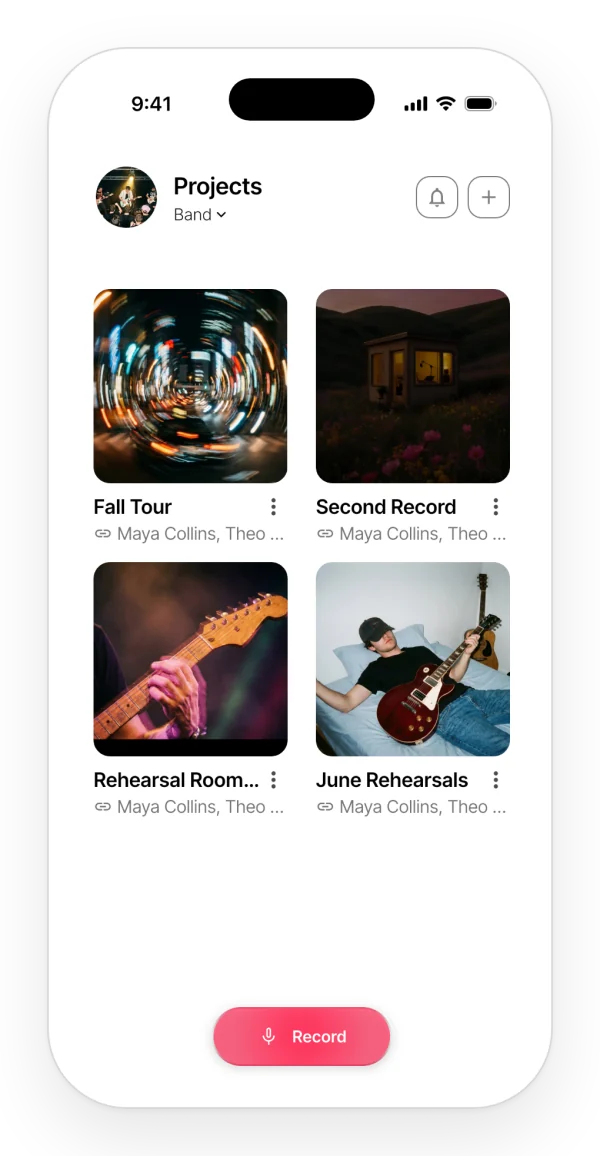
Step by step: tap the selector and pick the space. The active one has a check mark.
Each device remembers the space you picked. In the Band space, the avatar at the top shows the band’s photo. If the band is deleted while you are in it, you go back to «My space».
What it does not do: a space is not a folder. You cannot move a project from one space to the other. You can move or copy its content, as explained in Move and copy to another project.
On mobile and on the web: if you pick «Band» without having a band, your phone creates the band automatically when you have already paid for the Band plan, and otherwise shows the Band introduction. The web takes you to the band page.
Filter your projects
Three filters narrow down the list in «My space»:
- «All»: every project.
- «My projects»: the ones you created.
- «Shared with me»: other people’s projects you have been invited to.
Where it is: below the header on the home screen. They do not appear in the Band space.
When you switch spaces, the filter goes back to «All». If a filter has no projects, you will see «There are no projects in this view.».
What it does not do: you cannot search projects by name or sort them by hand from the home screen.
Project cards and order
Each card shows a square cover, the name and a line with an icon and the members:
- Padlock: a private project, with no other members.
- Chain link: a project of yours shared with other people.
- People: someone else’s project shared with you.
On your phone you see at most two member names, and the rest as a +N count. Tap the card to open the project. Its ⋮ menu offers «Delete» or «Leave project».
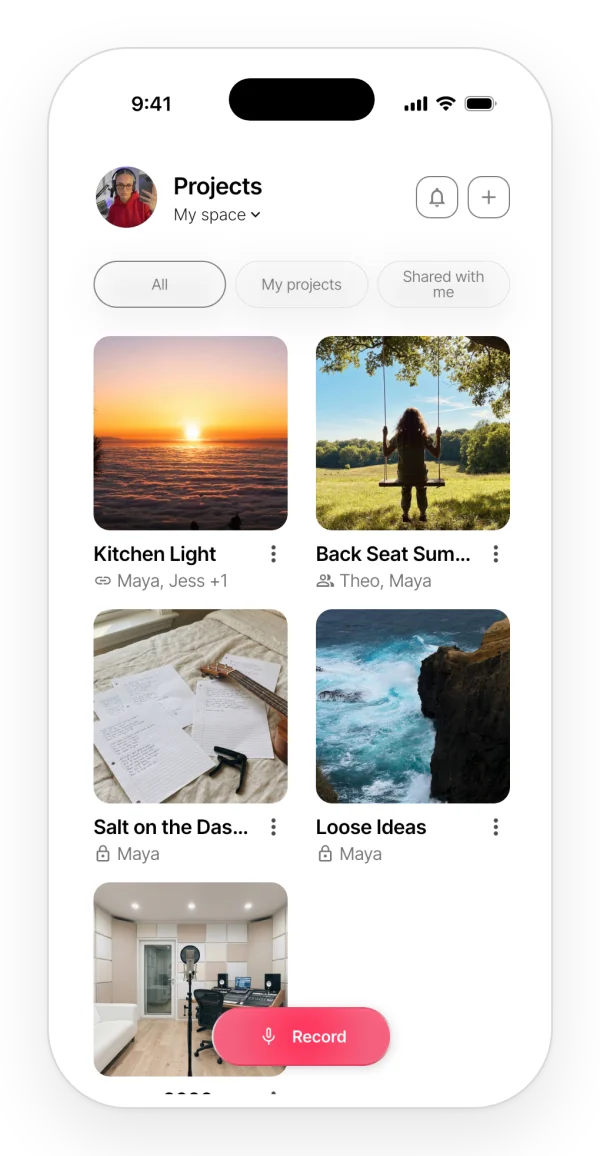
Order: the most recently created project comes first. Opening a project does not move it up the list.
What it does not do: there is no alphabetical, activity-based or manual order.
On mobile and on the web: on the web, when there are no names to show, the card says «Private project» or «Shared project».
Create a project
Where it is:
- Mobile: home screen → the + button (top right) → «Create project».
- Web: the + button in the header → «New project» window.
- With no projects yet: also from the «Create your first project» prompt.
Step by step:
- Type the name in «Project name».
- Tap «Create» on your phone or «Create project» on the web.
- On your phone, the project opens right away. On the web, it appears in the grid.
The project is created in the active space, with one of Zoundroom’s 10 covers picked at random. Creating a project in the band notifies the other members.
Limits:
- The Free plan has a maximum number of projects (see the limits table). When you reach it, your phone opens the plans screen and the web shows a notice.
- In the Band space, the band owner’s Band plan has to be active.
What it does not do: you cannot choose a cover, a description or a template when you create it.
To join someone else’s project with a code, use «Join a project» in that same window on your phone. It is explained in Notes, collaboration and Band.
Rename a project and change its cover
Rename: inside the project, tap the large title under the cover, type the new name and confirm. If you leave it empty, it goes back to the previous name.
Cover: inside the project, tap the cover.
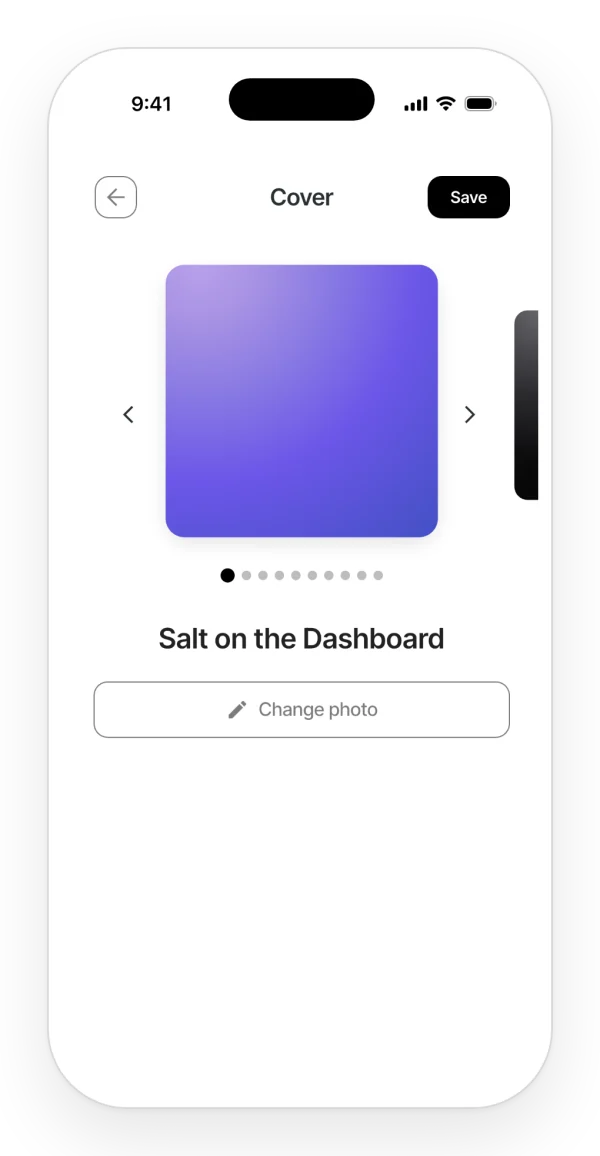
Step by step (mobile):
- The «Cover» screen opens.
- Choose an illustration from the carousel and tap «Save».
- Or tap «Add photo» («Change photo» if you already have one) to use an image from your gallery. It applies right away. JPG, PNG or WEBP, up to 10 MB.
Everyone in the project sees the cover, and you do not need Pro to change it.
Limits: the owner, editors and band members can rename the project and change the cover. A viewer cannot.
What it does not do:
- There is no option to remove the photo: to take it off, choose an illustration.
- You cannot crop the image or take a photo with the camera.
- Projects do not have a color of their own. The color is the app’s theme, explained in Account and plans.
On mobile and on the web: on the web, the «Cover» window shows the 10 thumbnails and «Add photo»; whatever you pick applies instantly.
Delete a project
Where it is:
- Mobile: the project card on the home screen → ⋮ → «Delete» → confirm («This action cannot be undone.»).
- Web: ⋮ → «Delete project».
All its content is deleted and the other members lose access. Anything still linked somewhere else is kept.
Limits: the person who created the project can delete it. In band projects, so can the band owner.
What it does not do: there is no trash. A deleted project cannot be recovered.
Leave a shared project (mobile only)
Where it is: the shared project’s card → ⋮ → «Leave project» → confirm («You will lose access to this shared project. Do you want to continue?»).
What you added stays in the project. To get back in, you need a new invitation.
What it does not do: it does not work for band projects: to stop seeing those, you leave the band, as explained in Notes, collaboration and Band. On the web there is no option to leave a project.
Inside a project: the tabs
The tabs sort what the project holds:
- «All»: audios, notes and files together.
- «Audios», «Notes» and «Files»: only that type.
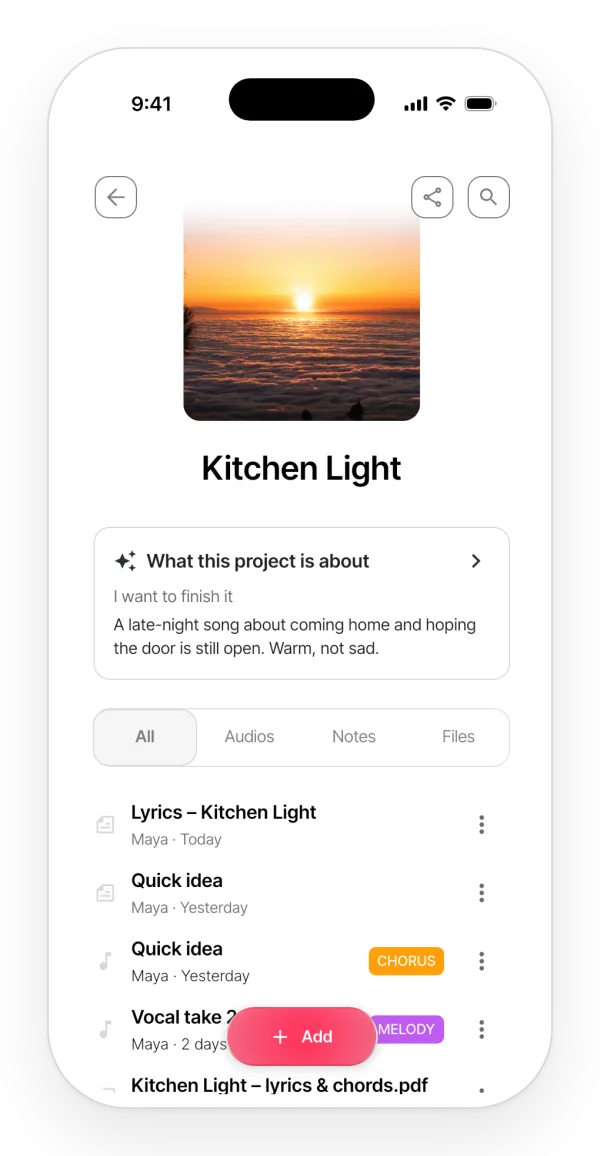
Step by step:
- Tap an audio to play it.
- Tap a note to open it.
- Tap a PDF to open the viewer.
Each row shows the author and the date («Today», «Yesterday», a number of days or the date). The newest items come first. An empty project says «Here starts your project. Record, import audios or create a note.».
Limits: on your phone, if a Free account is over its limit, the most recent items above it show a grey padlock and can only be deleted. Tapping them shows «You’ve reached the file limit of your free account».
On mobile and on the web: on the web, items above the limit are not locked.
«What this project is about»
A private note about what you want from the song. Auralis uses it so it does not give you generic advice.
Where it is: inside the project, above the tabs. It only appears if you have Auralis.
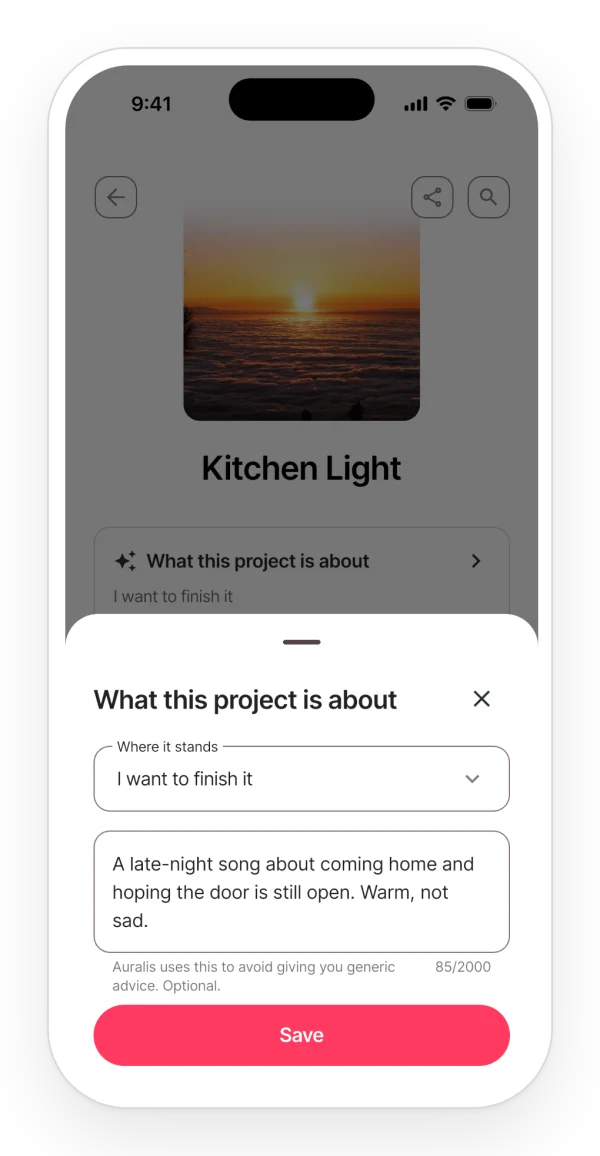
Step by step:
- Tap the card.
- In «Where it stands», pick one option: «I still don’t know what this is», «I want to finish it», «It’s going to be released» or «It’s for another artist».
- If you like, write what you want the song to convey (up to 2,000 characters).
- Tap «Save».
Only you see it: it is not shared with your collaborators. How Auralis uses it is explained in Auralis.
The ⋮ menu on audios, notes and files
Each item in a project has a ⋮ menu with its options.
| Item | Mobile | Web |
|---|---|---|
| Audio | «Edit audio», «Rename», «Move to another project», «Copy to another project», «Export», «Export WAV», «Delete» | «Edit audio», «Rename», «Move», «Copy», «Download», «Download WAV», «Delete» |
| Note | «Edit note name», «Move note to another project», «Copy to another project», «Delete» | «Rename», «Move», «Copy», «Delete» |
| File | «Edit name», «Move to another project», «Copy to another project», «Export file», «Delete file» | «Rename», «Move», «Copy», «Download», «Delete» |
Limits:
- You can only move items you created yourself.
- Any editor can rename, copy and delete an item, even if someone else created it.
On mobile and on the web: on your phone, only the owner, editors and band members see the menu. On the web, a viewer sees the menu on audios and files, but only to download them.
Move and copy to another project
Move takes the item out of this project and puts it in another one. Copy creates an independent duplicate in the other project.
Step by step (move):
- Open the item’s ⋮ menu and choose the move option.
- On your phone, pick the «Space» and then the «Target project». The item moves straight away.
- On the web, pick the project in «Save to project» and tap «Move».
To move, you need write access to both projects.
About copies:
- The copy becomes yours and counts toward your limits.
- On your phone, the copy’s name shows that it is a copy. On the web, a copied note keeps its title.
Moving or copying into a project notifies its members. If there is nowhere to send it, you will see «No other projects in this space» (mobile) or «There is no other project available.» (web).
What it does not do:
- You cannot select several items at once.
- You cannot duplicate an item inside the same project.
- An audio’s comments are not copied.
Rename, download and delete items
Rename: from the ⋮ menu. The name cannot be empty; on the web it can be up to 255 characters.
Download or export:
- Mobile: opens the system share menu.
- Web: downloads the file.
- The WAV is a conversion of the saved audio. It does not improve the quality, but it lets you open the audio in an audio editing program.
- Notes cannot be exported.
Delete: you are asked to confirm («Are you sure you want to delete ”…”?»). If the audio is playing, it stops. When you delete a note, its Auralis conversations are kept.
What it does not do: there is no trash. What you delete cannot be recovered.
Tags
A tag marks an audio with a color label, such as Chorus, so you can find it later. Each audio has at most one tag. Notes and files cannot be tagged.
There are 8 default tags: Intro, Verse, Melody, Chorus, Bridge, Outro, Rhythm and Guitar. Each has its own color.
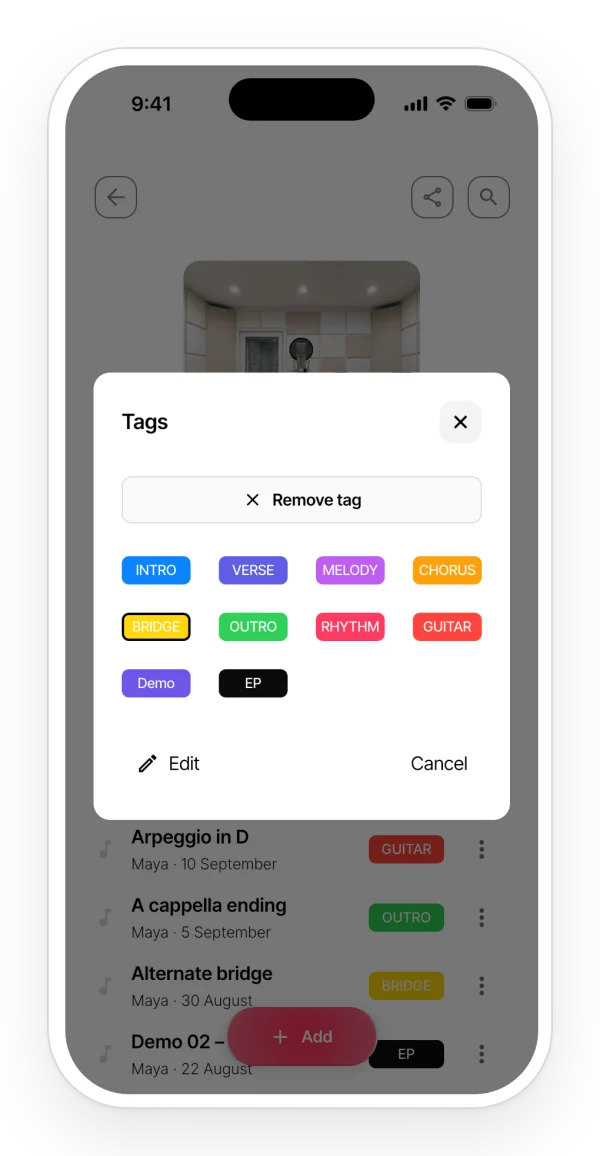
Where it is:
- Mobile: the colored pill to the right of the audio. If the audio has no tag, the «Tag» pill only appears while that audio is in the player: play it first, then tap «Tag».
- Web: the selector on each audio row, which shows the tag or «No tag». It has a search box.
Step by step (mobile): in the «Tags» dialog, tap a tag, or «Remove tag» to take it off.
Limits: custom tags are a paid feature: Free cannot create them (see the limits table). On the web, the management screen says «Custom tags require Professional».
In shared and band projects: if a collaborator tags an audio with one of their own tags, you see it with its name and color, but you cannot edit it.
Manage your tags
Where it is:
- Mobile: «Tags» dialog → «Edit».
- Web: «Settings» → «Tag Management».
Step by step:
- Create: «Add» → name and color → «Save».
- Edit: tap the tag to change its name and color.
- Delete: «Delete tag». It is removed from every audio of yours that had it.
The default tags cannot be renamed or deleted, only disabled and enabled again. On your phone you can also change their color.
Search inside a project
Where it is: the magnifying glass at the top right of the project.
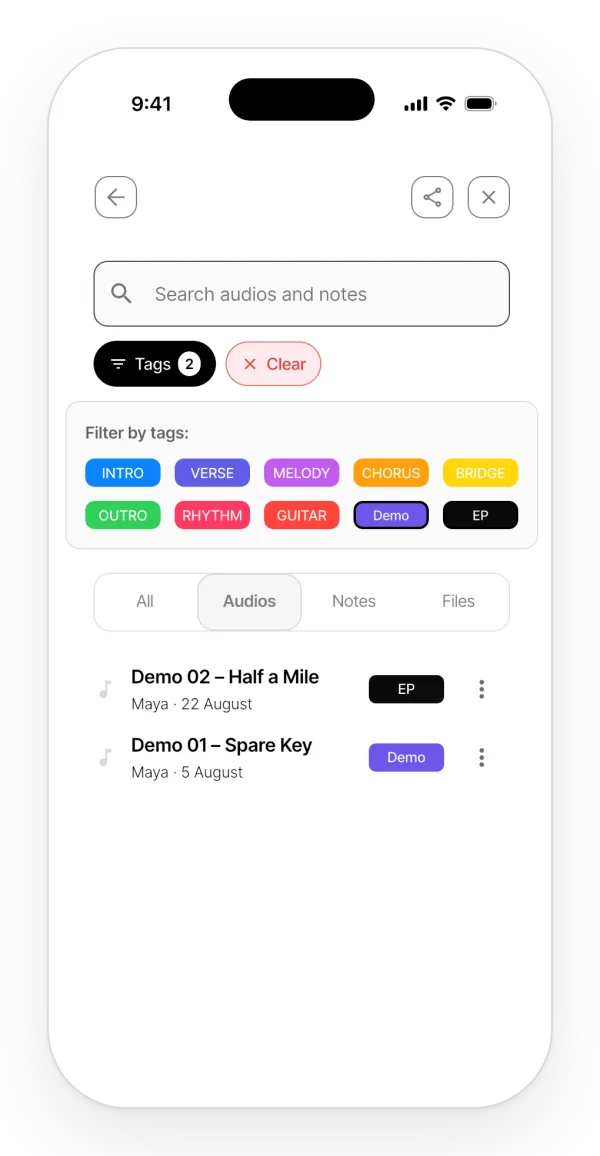
Step by step:
- Type in the search box («Search audios and notes» on your phone, «Search by name or tag» on the web).
- To filter by tag, tap «Tags» and pick one or more. With several tags, you get the audios that have any of them.
- On your phone, «Clear» removes the filters.
It searches the title of audios, notes and files. For audios, it also searches the name of their tag.
What it does not do:
- It does not search inside the text of your notes or inside PDFs.
- There is no global search across projects.
On mobile and on the web: on your phone, filtering by tag hides notes and files in every tab. On the web, the tag filter only works in «All».
PDF files
Add a PDF to a project, such as a chord sheet or the lyrics, and read it without leaving Zoundroom.
Where it is: «Add» → «File» in the project. Tap the PDF to open the viewer.
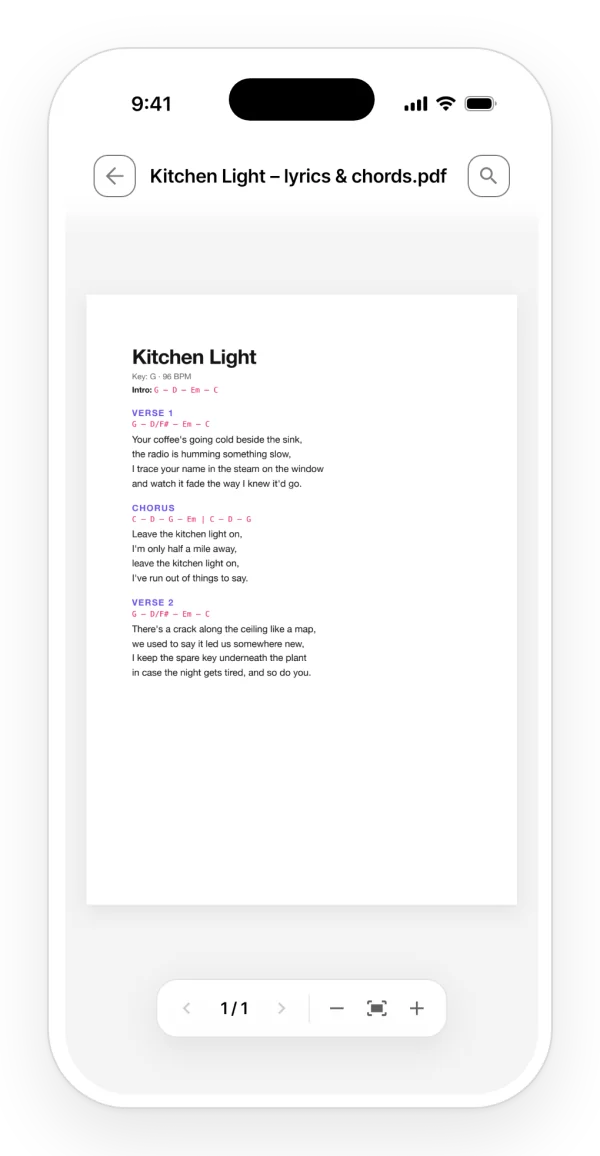
Uploading a PDF notifies the other members of the project.
Limits:
- Only PDF, up to 50 MB.
- The Free plan cannot import PDFs (see the limits table): the plans screen opens.
What it does not do:
- Images and Word documents cannot be added as project files.
- You cannot annotate the PDF.
On mobile and on the web:
- Mobile viewer: continuous scrolling, pinch to zoom, buttons to zoom out, fit to width and zoom in, and a magnifying glass to search the text of the PDF, with a match counter.
- Web viewer: one page at a time, zoom from 60% to 180% and «Previous page» and «Next page». It has no search.
Activity notifications
Find out what other people do in your projects and in your band. Zoundroom never notifies you about what you do yourself.
Where it is: the bell, on the home screen on your phone and in the header on the web. On your phone, a red dot means there are unread alerts.
What triggers an alert:
- Someone adds an audio, a note or a PDF to a project. Moving or copying content into it counts too.
- Someone comments on an audio.
- Someone creates a project in the band.
- Someone joins your band or one of your projects.
Tapping an alert opens the project; on your phone it also switches to the right space.
What does not trigger an alert: renaming, deleting, tagging, changing the cover, editing the text of a note or changing roles.
Preferences: «My profile» → «Notifications» (mobile) or «Settings» → «Notifications» (web). There you turn each type of push notification on or off: «Project created», «File created», «New comment», «Band invitation accepted» and «Project invitation accepted». Everything is on by default.
What it does not do: these switches only silence push notifications: the alerts still show up in the list.
On mobile and on the web: on your phone, opening the screen marks every alert as read. The web shows the latest 50 and marks them as read one by one.