
Chapter 6
Zoundroom Audio Editor: Adjust, Effects and Multitrack
Updated
On this page
The audio editor lets you adjust a recording, give it a more finished sound and record new takes over it (vocals, guitar, claps…) while what you already have plays back. It is the same editor on your phone (iOS and Android, from app version 2.5.0) and on your computer at app.zoundroom.com: you can start on one and carry on with the other, because the project is the same. This chapter covers opening it, every tab, recording over a song, saving, exporting and its limits. The overview is on the multitrack editor page.
Open the editor
Where it is: the ⋮ menu of any audio in a project → «Edit audio». On your phone you can also use «Edit audio» at the top right of the full player.
While it opens you will see «Opening the editor…», «Downloading the audio…», «Preparing the audio…» and «Detecting tempo and key…».
Limits:
- Only the project’s owner and editors can use it. In band projects, every member can.
- It works with audios of up to 30 minutes. A longer one shows «This audio is too long for the editor.».
- If you have an older version of the app, you will not see it until you update.
On mobile and on the web: on the web it is available at app.zoundroom.com for everyone.
The editor at a glance
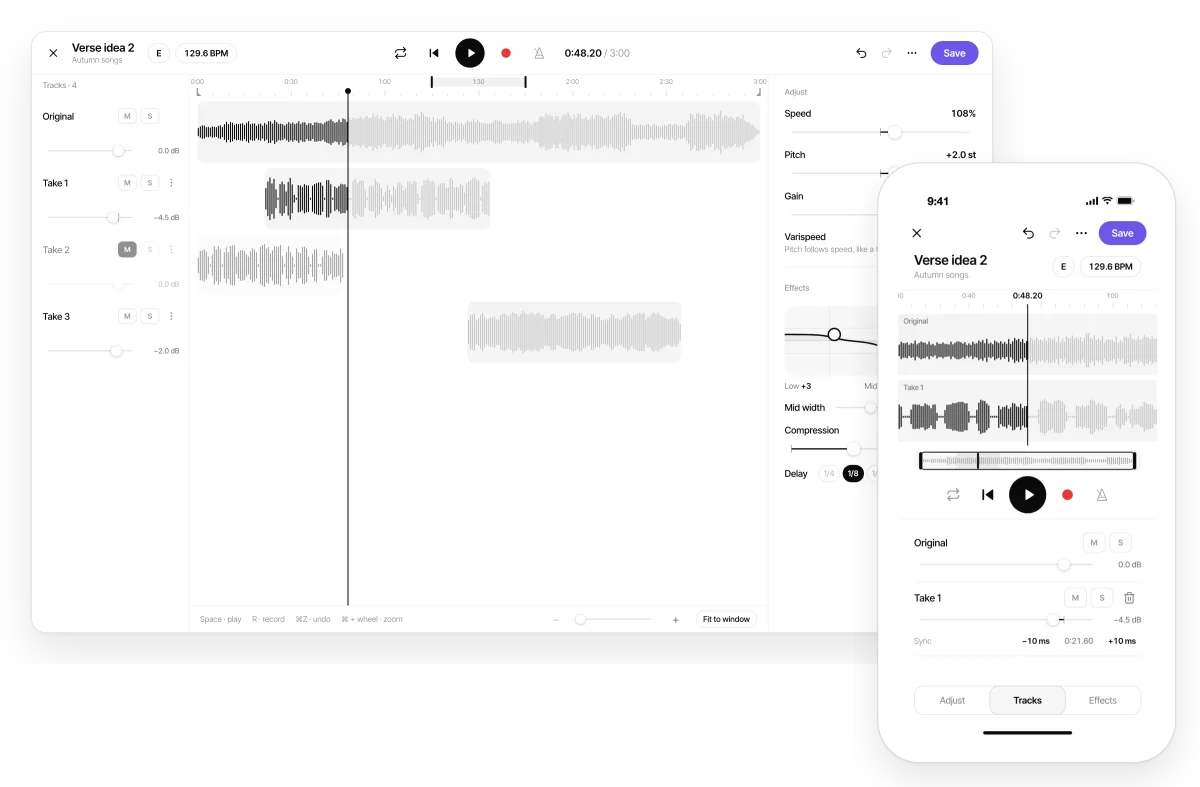
- Top bar: the X to leave, «Undo», «Redo», the ⋮ menu («Export», «Recording settings» and «Reset all») and «Save».
- Under the title: two chips with the audio’s key and its BPM. Tap them to change them.
- Timeline: the waveform of each track. Pinch to zoom; double-tap to fit the whole audio. Below it, a strip with the whole mix and the trim handles.
- Playback bar: «Loop», «Back to start», play, the red «Record» button and «Metronome».
- Tabs: «Adjust», «Tracks» and «Effects».
Editing is not destructive: the original audio is not touched until you save.
Change speed and pitch
Where it is: the «Adjust» tab.
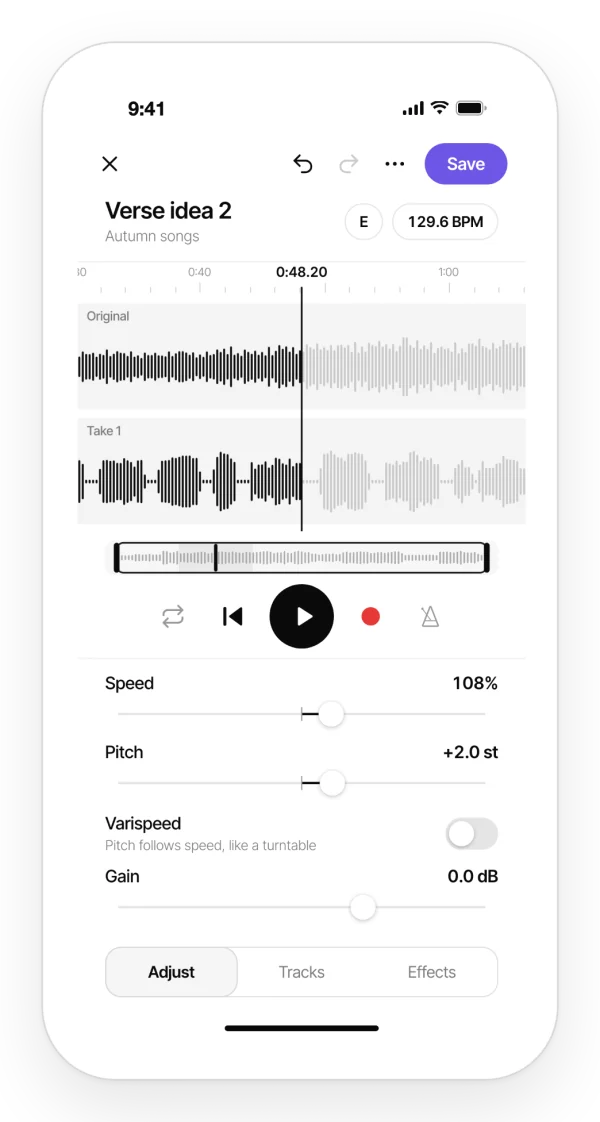
- «Speed»: from 50% to 150% with the slider, without changing the pitch. Setting the BPM gets you from 0.5× to 2× (see BPM and key).
- «Pitch»: up to 12 semitones up or down, without changing the speed.
- «Varispeed»: speed and pitch change together («Pitch follows speed, like a turntable»).
- «Gain»: the output volume.
Trim and loop
- Trim: drag the handles at the start and the end of the strip under the timeline. The trim only cuts the beginning and the end.
- Loop: turn on «Loop» in the playback bar and drag its start and end on the timeline to repeat that part while you work on it.
What it does not do: you cannot cut out a piece from the middle or split a track.
BPM and key
When you open an audio, Zoundroom detects its BPM and its key. It is an estimate: with speech or a free tempo it may not find a BPM.
Where it is: the two chips under the title.
Change the key:
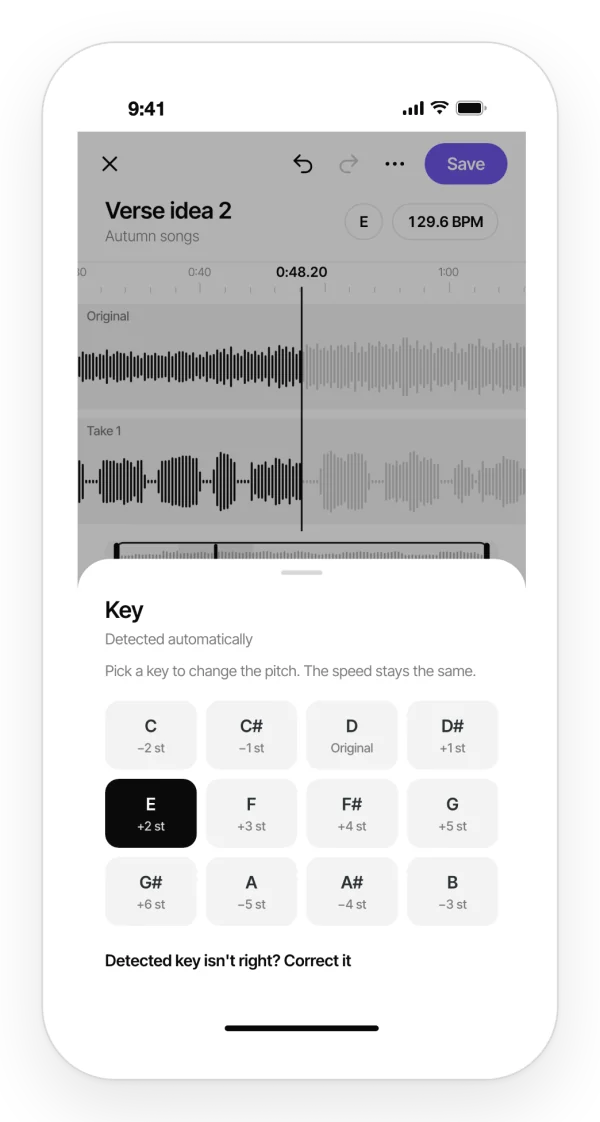
- Tap the key chip. The «Key» sheet opens.
- Pick the target key. The editor transposes by the shortest route and the speed stays the same.
Picking a key turns «Varispeed» off.
Change the tempo: tap the BPM chip and type the tempo you want it to play at; the speed adjusts.
Correct the detection: if the key or the tempo is wrong, use «Detected key isn’t right? Correct it» or «Detected tempo isn’t right? Correct it». For the tempo you can type it or use «Tap tempo». A correction only changes the value (the label, the metronome and the delay), not the sound.
Effects
Where it is: the «Effects» tab.
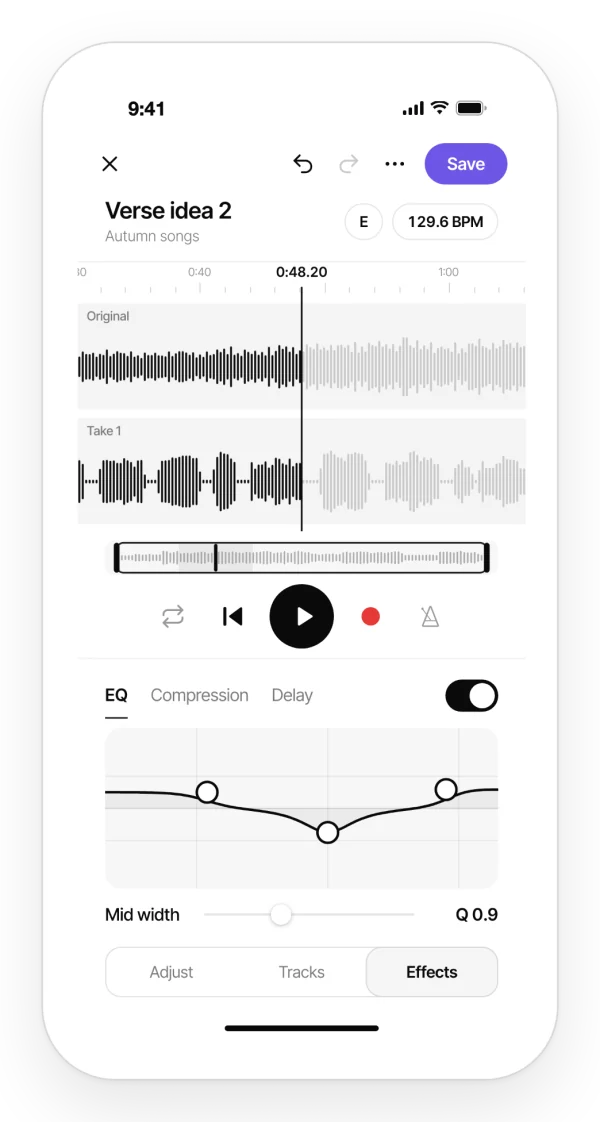
- «EQ»: a three-band equalizer («Low», «Mid» and «High») that you move with your finger or the mouse on the curve.
- «Compression»: a single «Amount» control that evens out the volume.
- «Delay»: synced to the tempo (1/4, 1/8, «Dotted 1/8» or 1/16) or set in milliseconds, with «Feedback» and «Mix». Without a tempo, the delay uses 120 BPM.
- «Effects on»: a switch to hear the audio with and without effects.
Record over the song
Record a new take while the audio plays. Each take becomes a new track.
Where it is: the red «Record» button in the playback bar.
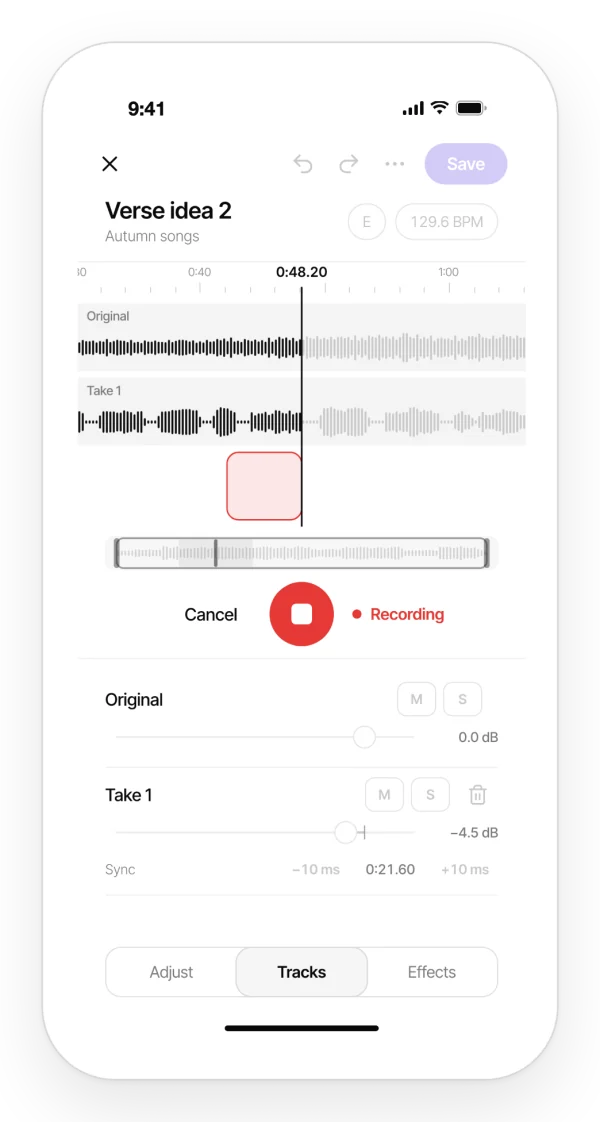
Step by step:
- Plug in wired headphones. Before your first take, the editor reminds you with «Use wired headphones»; tap «Continue».
- If you want, turn on «Metronome» and a count-in (see the next section).
- Tap «Record» and sing or play along.
- Tap «Done» to keep the take, or «Cancel» to throw it away.
Limits: up to 8 tracks, counting the original. When you reach the maximum, delete a take to record another.
What it does not do:
- It does not record a new take on every loop pass.
- With Bluetooth headphones, takes do not stay in time, because their delay cannot be measured.
Metronome, count-in and latency
Where it is: ⋮ → «Recording settings».
- «Metronome»: clicks along with the tempo. You turn it on and off in the playback bar, and set its volume here. It needs a tempo: set it in the BPM chip.
- «Count-in before recording»: «Off», 1 bar or 2 bars before the take starts.
- «Latency»: tap «Calibrate» so the editor measures your device’s delay and takes land in time. A few clicks play through the speaker and the microphone listens to them: unplug your headphones, turn the volume up and stay quiet for a few seconds.
Tracks: volume, mute and solo
Where it is: the «Tracks» tab. You will find the «Original» and each «Take» with its number.
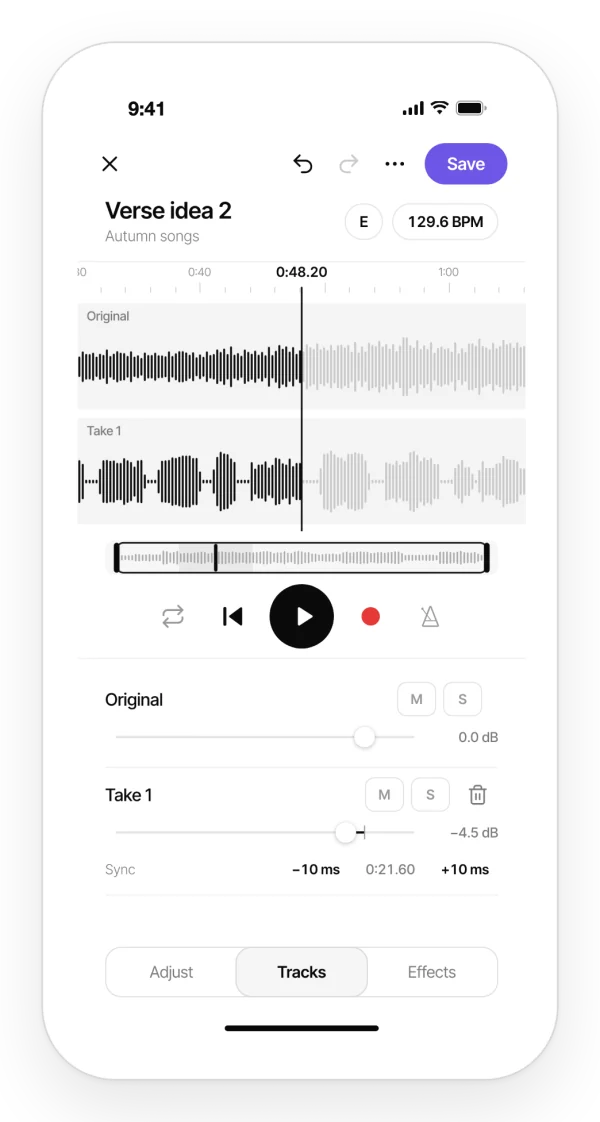
For each track:
- «Volume».
- «Mute» (M) and «Solo» (S).
- «Sync»: fine-tune the timing with «Move 10 ms earlier» and «Move 10 ms later».
- «Delete take»: you can get it back with «Undo».
If a take comes out too quiet, the editor turns it up on its own.
Undo, reset and drafts
- «Undo» and «Redo», in the top bar.
- «Reset all» (⋮ menu): takes you back to the original sound. You can undo it.
- Automatic drafts: if you close the app halfway through, next time you get «Recover unsaved changes», with «Recover» or «Discard».
- If you leave with the X, the editor asks «Discard changes?» before you lose adjustments and takes you have not saved.
Edit on your computer
On the web, the editor has a desktop view: all the tracks with their volume and M/S on the left, the whole song in the middle and «Adjust» and «Effects» on the right, all visible at once.
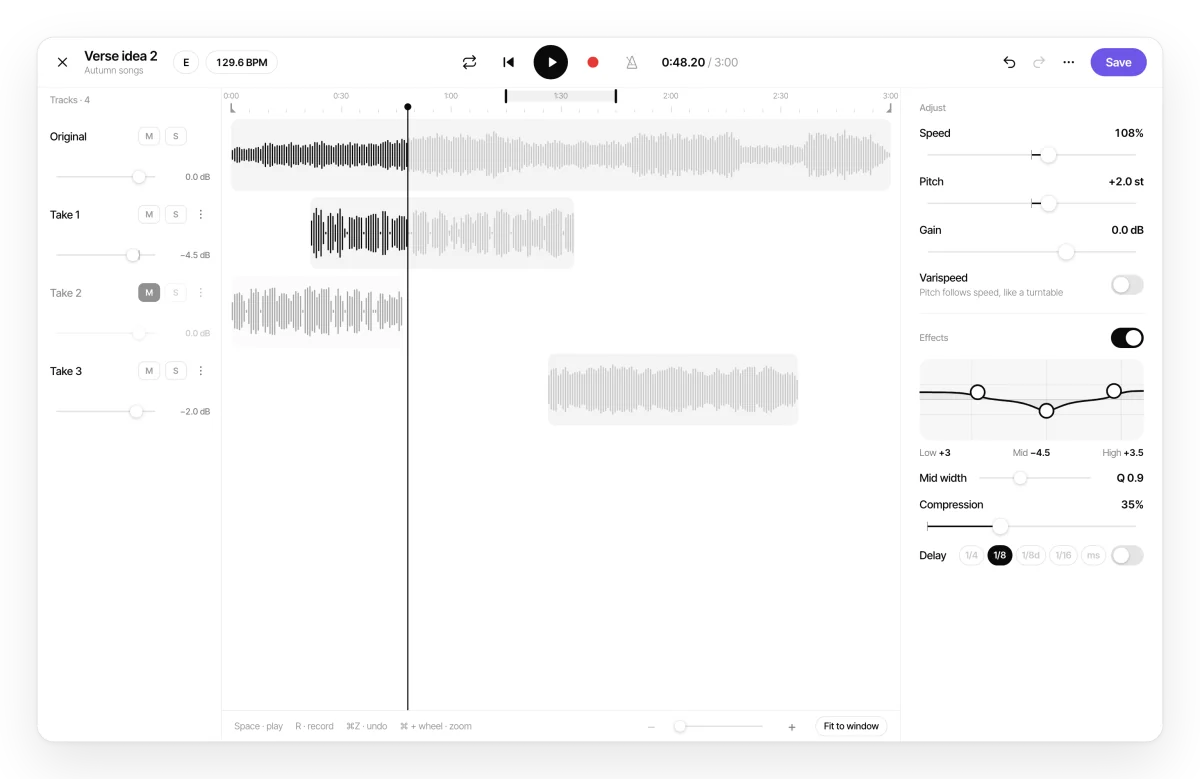
Keyboard shortcuts:
- Space: play or pause.
- R: start or finish a take.
- Cmd/Ctrl+Z: undo. Cmd/Ctrl+Shift+Z: redo.
Save: replace or new version
Step by step:
- Tap «Save».
- If you created the audio, it is replaced in the project, with the same name and position («Audio replaced»).
- If the audio has comments or appears in a note, the editor asks first («Replace or save a version?»): replacing it deletes its comments, and the notes show that the audio is no longer available. Choose «Replace» or «Save as new version».
A new version keeps the original as it is and is saved as another audio with a version number in its name («New version saved»).
If you did not create the audio, you always save a new version under your name: a bandmate’s original is never overwritten. In band projects, each member can record their take over the song and save their own version.
If someone else saved the audio while you were editing, you will see «This audio has changed», and you can save your changes as a new version so you lose nothing.
When you reopen an edited audio, its takes come back as separate tracks, so you can keep mixing.
Limits: a new version is one more item, so it counts toward your plan’s limits. If you are on Free and already at the limit, the editor asks you to move to Pro to save new versions.
Export
Where it is: ⋮ → «Export». It shares the mix as an M4A (AAC 256 kbps) file.
What it does not do: the editor does not export WAV or MP3, or each track as a separate file.
Editor limits by plan
- Free: a limited number of editing sessions in total (the figure is in the limits table). Opening the editor and leaving without saving does not use one: a session only counts when you save or export. The editor tells you how many you have left, and when you run out it shows «Unlimited editing with PRO».
- Pro and Band: no limit.
- Band: if the band’s plan has expired, you will see «The Band needs to reactivate its plan to edit audio.».
What the editor does not do
It is an editor for working on your ideas, not a production studio:
- It does not separate stems or remove vocals or instruments.
- There are no fades, no normalizing, no reverb and no panning.
- It has no built-in tuner.
- There is no MIDI and there are no virtual instruments.