
How to Record a Song on Your iPhone (or Android Phone)
Published · Updated
Record a song on your iPhone or Android phone for free: where to put the phone, Voice Memos and GarageBand settings, singing over a backing track and what to export.
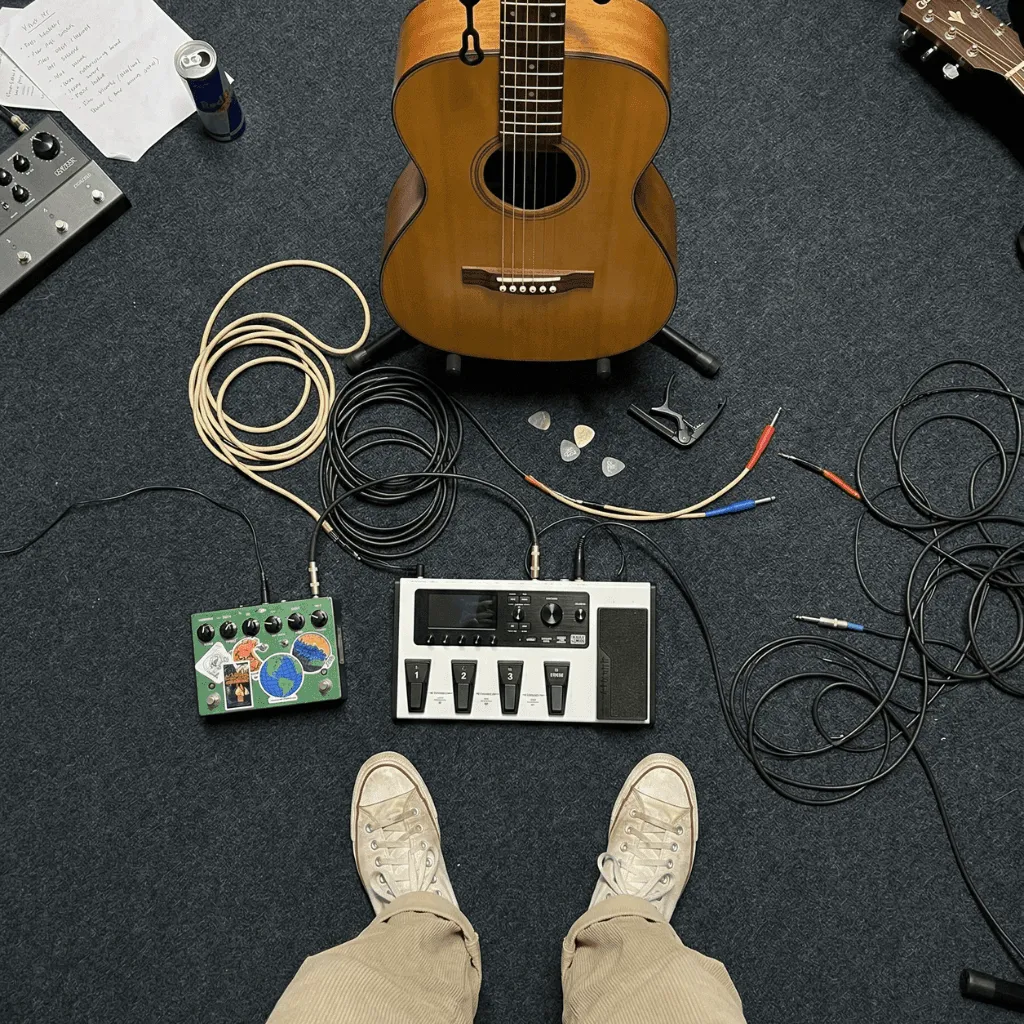
To record a song on your iPhone for free, use what is already on it: Voice Memos for a voice-and-guitar take, and GarageBand (free) when you need a count-in, a click or a backing track. On Android, the phone’s recorder app or BandLab does the same job. The quickest way to a take that sounds good:
- Pick a small room with soft furnishings: curtains, a sofa, a wardrobe of clothes.
- Put the phone 15–20 cm (a hand span) from your mouth, slightly to one side.
- Switch on airplane mode, or Do Not Disturb if your app needs a connection.
- Sing the loudest line as a test and check that nothing distorts.
- Record a guide take, listen on headphones, then record the real take.
- Export M4A to share, or WAV if someone will keep working on it.
The goal is not studio sound. It is a take clear enough for the next decision: learning the song, finishing the lyric or asking for feedback.
Which app to use for each job
| App | Best for | Platforms | Price | Limit |
|---|---|---|---|---|
| Voice Memos | A fast voice-and-instrument take | iPhone (preinstalled) | Free | No click or backing while recording |
| GarageBand | Count-in, click, singing over a backing | iPhone, iPad (current version needs iOS 26) | Free | Takes a few minutes to learn |
| Recorder (Pixel), Voice Recorder (Samsung) | Quick Android takes | Pixel 3 and later, most Galaxy phones | Free | One track |
| BandLab | Multitrack over a beat | iOS, Android, web | Free, optional in-app purchases | Needs an internet connection |
| Zoundroom | Keeping every take with the lyric and notes | iOS, Android, web | Free plan with limits | Not a full DAW: no reverb, MIDI or mastering |
Before you press record
Choose the room, not the gear
Echo makes a phone take sound cheap more than the microphone does. Bare walls, tiles and windows throw your voice back into the recording. Use your most furnished room and face its soft side. Avoid bathrooms and kitchens, however good they sound while you sing.
Place the phone for your voice
Put the phone on a stand or a pile of books rather than holding it: hands make noise and change the distance. Keep it 15–20 cm from your mouth and aim it at your chin, not straight at your lips, so “p” and “b” sounds do not thump. Phones have several microphones and models differ, so make a ten-second test in your chosen position and listen back on headphones.
Silence the phone
Airplane mode stops calls and messages from ruining a take. BandLab needs an internet connection, so use Do Not Disturb there. On iPhone, Silent mode also mutes the start and stop tones in Voice Memos.
Record a song on iPhone: step by step
Voice Memos: the fastest free take
- Choose the recording mode. Go to Settings › Apps › Voice Memos › Recording Mode and pick Mono, Stereo or Spatial Audio. On supported models the built-in microphone records Spatial Audio by default, which becomes stereo when you export. If your version also shows Audio Quality there, choose Lossless: more detail, bigger files.
- Check the microphone mode. Open Voice Memos (in the Utilities folder), open Control Center and tap Voice Memos at the top. Voice Isolation filters out background sound, and that can include your guitar. For music, choose Wide Spectrum if your model offers it.
- Make a guide take of a verse and chorus, about a minute. Apple’s advice for level is to move the microphone closer or farther away, so if the loudest line crackles, move the phone back.
- Record the real take, the whole song. You can pause and tap Resume.
- Rename it at once. Tap the recording, then its name. “New Recording” tells you nothing next week.
- Compare the playback options. Tap the recording, then Options. Enhance Recording reduces background noise and echo on Mono and Stereo recordings. Studio Sound works on Spatial Audio recordings and reduces music along with background sound, except on iPhone 18 Pro models. Listen with each on and off.
- Share with Share › Options › Rendered to get a single .m4a file.
Layered recordings. On iPhone 16 Pro, 16 Pro Max, 17, 17 Pro, 17 Pro Max, iPhone Air, 18 Pro and 18 Pro Max, Voice Memos can record a vocal layer on top of an instrumental recording without headphones. Record the guitar, open that recording and add the voice as a second layer; you can mix or separate the layers later. A normal export flattens them into one .m4a.
The limit to remember: if another app starts playing audio, Voice Memos stops recording. You cannot play a backing from another app on the same phone while it records. If you only need a click, the online voice recorder runs in the phone’s browser with a count-in and a metronome at your chosen BPM, no account needed. For iPhone apps that do record over a backing, or keep takes beside the lyric, see the iPhone songwriting and recording apps compared.
GarageBand for iPhone: count-in, click and backing tracks
- Start a song for audio. In My Songs, tap New Audio Recording, or touch and hold the GarageBand icon and choose Create New Audio Recording. The Audio Recorder opens with the section length set to Automatic, so a long take is not cut off. The ruler shows minutes and seconds; turn Time Ruler off in the song settings if you prefer bars.
- Set tempo and click. Tap the Settings button, then Tempo, then Metronome and Count-in. The Metronome button in the control bar switches the click on and off. Unsure of the tempo? Tap it on the tap-tempo metronome.
- Check the level. If the In slider turns red, lower it or sing slightly softer. With an external microphone or headset, Input Settings can set the level automatically and the Monitor button lets you hear yourself.
- Record. Tap Record, sing over the click and tap Play to stop.
- Export. In My Songs, touch and hold the song, tap Share, then Song, choose the audio quality and save it to Files.
If you start from an empty song instead, the section has a fixed length: tap the Song Section button at the right of the ruler, then Inspector, and turn on Automatic.
Zoundroom: record straight into the song
Open the song’s project in Zoundroom and tap record: the take is saved in that project. To try a melody for one line, place the cursor under it in the lyric note and record inside the note; the audio is inserted there. For a click or a backing, open a take or an imported backing from its ⋮ menu → Edit audio: the multitrack editor records you over it with a metronome and a count-in; use wired headphones so the take stays in time.
Record a song on an Android phone
Samsung Voice Recorder comes preinstalled on most Galaxy phones. Tap Menu (three lines), then Settings: set Recording quality to High and turn on Record in stereo. Keep Recording mode on Standard, because Interview focuses on the top and bottom of the phone and filters out other audio. Block calls while recording is in the same menu.
Recorder on Pixel (Pixel 3 and later): tap Record, Pause when you finish, Resume to continue. To send the file, touch and hold the recording, tap Share File, then Audio.
BandLab is free on Android, iOS and the web, and needs an internet connection. In the Create tab, tap Open Studio and add a Voice/Audio track; Studio Settings holds the tempo, metronome and count-in. Projects can run up to 15 minutes with up to 16 tracks. On Android the input follows your phone’s sound settings; choosing an input device is iOS only.
Zoundroom works the same way on Android, with the same account.
Record over a backing track or chords
Use wired headphones
What you hear must not reach the microphone, and it must arrive on time. BandLab’s help center puts typical latency at about 5–10 ms with wired headphones and 34–300 ms over Bluetooth, enough for your voice to land late. On iPhone 15 and later, use USB-C headphones or Apple’s USB-C to 3.5 mm adapter. Keep the backing quiet so it does not leak into the take.
Make a free backing with the chord player
No backing yet? The chord progression player opens in G major with G–D–Em–C, strummed guitar and ballad drums at 84 BPM. Change the key, chords or tempo to fit your song. With headphones on, tap Record a take, sing over the loop, then Download take. The file holds your microphone take only, so write the chords and BPM next to it: anyone can rebuild the backing from the link.
A 20-minute worked example
“Paper Boats” is a verse and chorus in G at 84 BPM.
- Tap the tempo on the metronome while humming the chorus: 84.
- Sing the verse and chorus over the chord player loop and download that guide take.
- Record the real take with voice and guitar in Voice Memos, or in GarageBand with the click at 84.
- Record a second full take and name both:
Paper Boats – verse and chorus – take 1andtake 2. - Put the three files in the song’s project with the lyric, the chords and one question: “Is the chorus key too high?”
Already have the backing as a file, such as a producer’s beat? In GarageBand, tap the Tracks button, then Loop Browser, Files and Browse items from the Files app. It accepts AIFF, WAV, AAC and MP3. Imported audio does not follow tempo changes, so set the song’s tempo to the backing’s BPM, then add an Audio Recorder track with the Add Track button below the track headers.
Voice and guitar together: where to put the phone
Start 40–60 cm in front of you at chest height, pointing between your mouth and where the guitar’s neck meets the body; the soundhole sounds boomy. Then run the three-take test: play the same short passage in your starting position, with the phone a little closer to your voice, and a little farther from the guitar. Listen on headphones, keep the position where words and chords are easiest to follow, and record the whole song there. Change only the placement between tests, or you will not know what helped.
External microphones for iPhone and Android
You do not need one to start, but a small microphone close to the source beats a phone across the room:
- Clip-on (lavalier) microphone: voice only, at a fixed distance while you play.
- Compact stereo microphone that plugs into the phone: voice and guitar together, or a rehearsal.
- USB microphone or small audio interface: a better vocal microphone, or separate inputs. GarageBand can record Input 1, Input 2 or both in stereo.
Check the connector. iPhone 15 and later use USB-C; older iPhones use Lightning, so look for “Made for iPhone” or “Works with iPhone” accessories. On Android, check the microphone maker’s compatibility list for your model.
Common problems and how to fix them
| Problem | Likely cause | Fix |
|---|---|---|
| Distant, hollow voice | Room echo | Move closer and face the soft side of the room |
| Thumps on “p” and “b” | Breath on the microphone | Aim at your chin, 15–20 cm away |
| Crackles on loud notes | Clipping | Move back or lower the input; keep peaks around −12 dBFS where the meter shows numbers |
| The guitar almost disappears | Voice Isolation or Studio Sound | Use Wide Spectrum; compare with enhancements off |
| Voice late against the beat | Bluetooth headphones | Wired headphones; on Android, BandLab’s Gear icon › Latency Fix runs a test |
| Backing audible in the vocal | Headphones too loud | Lower them or use closed-back headphones |
| A call ruined the take | Notifications | Airplane mode, Do Not Disturb or Block calls while recording |
| GarageBand stops after a few bars | Fixed section length | Set the section to Automatic |
Which format to export
- M4A (AAC): small, plays almost anywhere. Voice Memos gives it as a Rendered file and BandLab’s phone app downloads mixdowns in it. Use it to share.
- WAV: uncompressed and larger, for someone who will keep working in a DAW. BandLab on the web exports 16-bit, 44.1 kHz WAV mixdowns.
- Editable Voice Memos file (QuickTime Audio): keeps layers adjustable, but only on compatible Apple devices. Send Rendered to everyone else.
Keep the best original and send the M4A.
Organize takes so you never lose them
- Name by song and change:
Paper Boats – chorus lower – take 2, not just a date. The song file name generator keeps names consistent. - Add a spoken slate when a file may travel: “Paper Boats, September 26, chorus a tone lower; is it easier to sing?” It stays identifiable even if the file is renamed.
- One project per song, with the takes, lyric and chords, and one take marked as the current reference.
- Delete obvious failures the same day; keep takes that show a real alternative.
For a big backlog, see how to organize voice memos for songwriting. To choose an app that keeps new takes sorted from the start, compare apps to capture and organize musical ideas.
Share the recording for feedback
Send one file, one question and a time: “Chorus at 0:45. Is it too high for me?” Listen once on headphones first to check the words are clear. Then fill in the demo feedback brief so your listener knows which passage to judge. If you are unsure what the recording needs at this stage, read what a demo in music is.
Where Zoundroom fits: every take in the song’s project
Zoundroom keeps your phone takes, the lyric and your notes together once you have recorded them. Create a project with the song’s working title and tap record: the take is saved in that project. When you want a melody for a specific line, record inside the note, under the lyric, and the audio appears at the cursor. Import the GarageBand export, the Voice Memos file or the chord player take into the same project and insert any of them in the note. The same account opens the project and its recordings on iPhone, Android and the web, and you can invite a co-writer; timestamped comments on a recording come with Pro and Band. Next step: create the project for the song you are working on, record one complete take and write the question you want answered under it.
Zoundroom is not a full DAW. Its editor records up to 8 tracks over a song, balances them and adds EQ, compression or delay, but there is no reverb, pan, pitch correction or mastering, so keep GarageBand or BandLab for a produced demo. See how recording and importing works, or the songwriting app for iPhone.
When the phone is not enough
A multitrack recording app for your phone stretches the phone further, with overdubs on separate tracks. Move to a computer or an audio interface when you need more tracks, several microphones at once or reliable monitoring for overdubs. The guide to recording a demo at home without expensive gear covers that step. If the lyric is not finished, the lyric-writing guide has a melody you can sing over and record in the browser.
Frequently asked questions
How do I record a song on my iPhone for free?
Use Voice Memos for a voice-and-instrument take, or GarageBand, a free Apple app, when you need a count-in, click or backing. Put the phone 15–20 cm from your mouth in a furnished room, switch on airplane mode, make a guide take, then record the whole song.
How can I make vocals recorded on a phone sound good?
Most of it is room and distance: a furnished room, the phone 15–20 cm away and slightly to the side, and no clipping on the loudest line. Use wired headphones over a backing, and compare Enhance Recording on and off.
Can I record over a beat on my phone?
Yes. On iPhone, import the beat into GarageBand and record on an Audio Recorder track. On Android or iPhone, BandLab lets you import a beat and add a Voice/Audio track. Use wired headphones. Voice Memos alone cannot play a beat from another app while it records.
What format should I export a phone recording in?
M4A to share, because it is small and plays almost anywhere; WAV when someone will edit or mix it. Keep the original take too.
Sources
All pages checked on September 26, 2026.
- Apple Support, iPhone User Guide: Make a recording in Voice Memos, Add a second layer to a recording and its supported models, Play a recording, Share a recording and Export a recording to Files.
- Apple Support, Change settings in Voice Memos on Mac (Compressed and Lossless audio quality).
- Apple Support, GarageBand User Guide for iPhone: Audio Recorder, Change song settings, Create and save songs, Add song sections, Import audio and MIDI files and Share songs.
- App Store, GarageBand: free, requires iOS 26.0 or later.
- Apple Support, Charge and connect with the USB-C connector on your iPhone.
- BandLab Help Center: Supported Platforms and System Requirements, Getting Started with the BandLab Studio, Using the Metronome, Supported Import and Export File Formats, Fixing Latency and Fixing Bluetooth Distortion and Latency.
- Pixel Phone Help: Create, edit & delete a recording and Save & share recordings.
- Samsung US Support, Use Voice Recorder with Galaxy AI on Galaxy phones or tablets.