
Google Drive for bands and song projects: a workflow that keeps context
Published · Updated
Organize files, permissions, and versions in Google Drive without confusing a folder with the actual state of the song. Includes limits and a clear handoff.
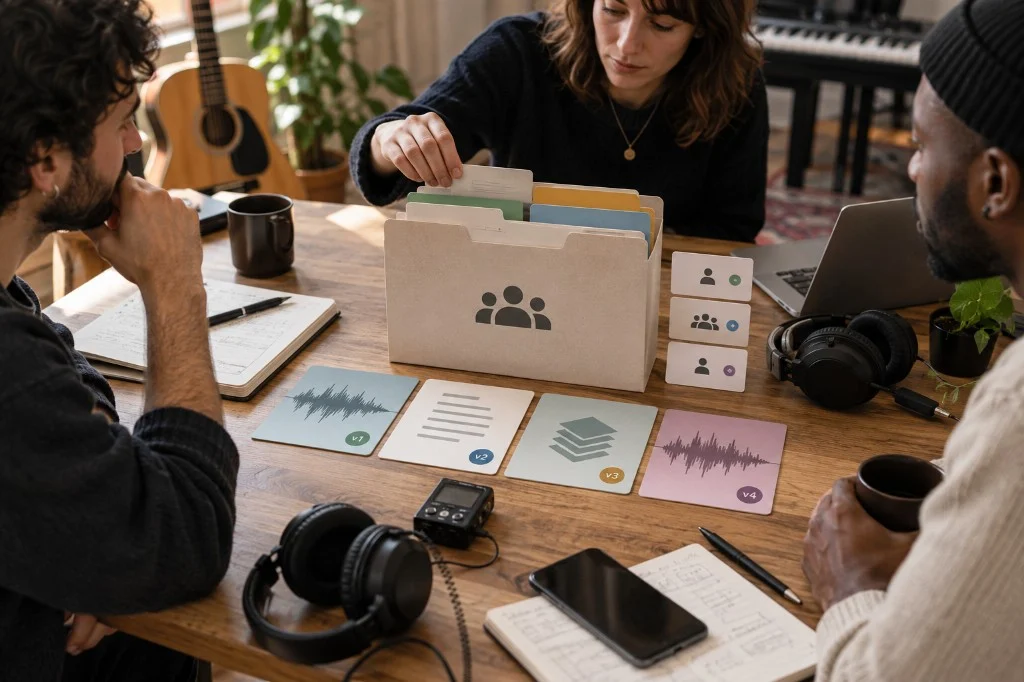
Google Drive solves an important band problem well: storing and sharing files with explicit permissions. Trouble starts when a folder quietly becomes responsible for something it does not know by itself: which version is current, which decision is open, and who owns the next step.
Quick answer
Use one folder per song or project, a stable naming convention, the minimum access each person needs, and one clearly marked current reference. Drive can preserve files and activity/version history depending on file type; the team still needs a clear rule for which reference is current.
1. One project folder, not one folder per person
Avoid structures such as “Ana guitar,” “rehearsal stuff,” and “final mixes 2.” A simple tree can be:
01 Current02 Working takes03 References
The numbers are not universal rules. They simply create a shared reading order so another band member can enter without asking where to look.
Example: a folder a bandmate can understand
For a song called “North Window”, use three folders: 01 Current, 02 Working takes and 03 References. In Current, put one listening demo, the lyric being rehearsed and a note saying “Try a shorter intro on Thursday”. Keep alternatives in Working takes. Before sharing, ask a bandmate to find the rehearsal audio without help. If they pick a different file, fix the names or the folder, not their memory.
Build a readable filename for your next take with the song filename generator.
2. Name files so they answer “what is this?”
Use a title, change and take number: North-Window_short-intro_v03.m4a. Keep the title and take number stable when sharing feedback, so “try the shorter intro” points to one identifiable recording.
3. Use permissions deliberately
For a guest who only needs to listen, share the reference with viewing access. Give editing access to the people updating the working folder. Check the parent folder too: Drive permissions are inherited by the files inside it. If the band writes from different places, this comparison of remote co-writing tools shows where Drive fits next to the live call and the shared studio.
4. Separate file history from musical decisions
Drive provides activity and version-management capabilities, with differences between Google files and other file types. That can recover material, but it does not automatically answer “which demo did the band approve?” or “which arrangement issue is still open?” Keep a short README or project note with current reference, closed decisions, open questions, and next owner.
Drive remains useful for storing and sharing files. When the band’s problem stops being “where is the file?” and becomes “which recording are we working from, and what is still undecided?”, Zoundroom can complement Drive by keeping the working recording, lyrics or notes and those open decisions in the song project. Large deliveries can stay in Drive if that is where the team chooses to store them.
For uploaded audio, open Manage versions to add a replacement or keep an earlier take. Mark a milestone Keep forever if you need it preserved in that history. Google documents this separately from Docs history. Keep the band’s chosen reference named in the project note.
5. Make it clear what the next person needs
When one person passes work to another, send more than a link. Include:
- current reference;
- lyric and tempo/key if known;
- included files;
- closed and open decisions;
- specific questions;
- next owner.
That is different from an unfinished-song checklist. The goal is simply to let another person continue without rebuilding the whole context.
Drive, chat, Notion, and band apps solve different jobs
Chat is fast for conversation, but a thread is not a project archive. Notion can structure documentation but may not be the file repository; Notion for songwriters shows where its limits appear. Drive stores and shares well but does not infer creative state. An app for bands can fit better when the workflow centers on the song and music collaboration rather than the folder.
Official sources
- Google Drive Help — Share files and folders
- Google Drive Help — View activity and file versions
- Google Workspace — Drive product documentation
Documentation reviewed: 2026-09-17.